Esta página fue traducida por PageTurner AI (beta). No está respaldada oficialmente por el proyecto. ¿Encontraste un error? Reportar problema →
Emisión de Eventos en Módulos Nativos
En algunos casos, puede que necesites un Módulo Nativo que escuche eventos en la capa de plataforma y los emita a la capa JavaScript, permitiendo que tu aplicación reaccione a estos eventos nativos. En otros escenarios, podrías tener operaciones de larga duración que emitan eventos para actualizar la UI cuando ocurran.
Ambos son casos de uso válidos para emitir eventos desde Módulos Nativos. En esta guía aprenderás cómo hacerlo.
Emitiendo un evento al añadir una nueva clave al almacenamiento
En este ejemplo, aprenderás a emitir un evento cuando se añade una nueva clave al almacenamiento. Modificar el valor de una clave existente no emitirá el evento, solo la creación de nuevas claves.
Esta guía parte del tutorial de Módulos Nativos.
Asegúrate de familiarizarte con esa guía antes de continuar, idealmente implementando su ejemplo práctico.
Paso 1: Actualizar las especificaciones de NativeLocalStorage
El primer paso es actualizar las especificaciones de NativeLocalStorage para informar a React Native que el módulo puede emitir eventos.
- TypeScript
- Flow
Open the NativeLocalStorage.ts file and update it as it follows:
+import type {TurboModule, CodegenTypes} from 'react-native';
import {TurboModuleRegistry} from 'react-native';

+export type KeyValuePair = {
+  key: string,
+  value: string,
+}

export interface Spec extends TurboModule {
  setItem(value: string, key: string): void;
  getItem(key: string): string | null;
  removeItem(key: string): void;
  clear(): void;

+ readonly onKeyAdded: CodegenTypes.EventEmitter<KeyValuePair>;
}

export default TurboModuleRegistry.getEnforcing<Spec>(
  'NativeLocalStorage',
);
Open the NativeLocalStorage.js file and update it as it follows:
// @flow
+import type {TurboModule, CodegenTypes} from 'react-native';
import {TurboModule, TurboModuleRegistry} from 'react-native';

+export type KeyValuePair = {
+  key: string,
+  value: string,
+}

export interface Spec extends TurboModule {
  setItem(value: string, key: string): void;
  getItem(key: string): ?string;
  removeItem(key: string): void;
  clear(): void;
+ onKeyAdded: CodegenTypes.EventEmitter<KeyValuePair>
}
export default (TurboModuleRegistry.get<Spec>(
  'NativeLocalStorage'
): ?Spec);
Con la declaración import type, importas CodegenTypes desde react-native, que incluye el tipo EventEmitter. Esto te permite definir la propiedad onKeyAdded usando CodegenTypes.EventEmitter<KeyValuePair>, especificando que el evento emitirá un payload de tipo KeyValuePair.
Cuando se emite el evento, esperas que reciba un parámetro de tipo KeyValuePair.
Paso 2: Generar el Codegen
Tras actualizar las especificaciones del Módulo Nativo, debes volver a ejecutar Codegen para generar los artefactos en el código nativo.
Este proceso es idéntico al presentado en la guía de Módulos Nativos.
- Android
- iOS
Codegen is executed through the generateCodegenArtifactsFromSchema Gradle task:
cd android
./gradlew generateCodegenArtifactsFromSchema

BUILD SUCCESSFUL in 837ms
14 actionable tasks: 3 executed, 11 up-to-date
This is automatically run when you build your Android application.
Codegen is run as part of the script phases that's automatically added to the project generated by CocoaPods.
cd ios
bundle install
bundle exec pod install
The output will look like this:
...
Framework build type is static library
[Codegen] Adding script_phases to ReactCodegen.
[Codegen] Generating ./build/generated/ios/ReactCodegen.podspec.json
[Codegen] Analyzing /Users/me/src/TurboModuleExample/package.json
[Codegen] Searching for Codegen-enabled libraries in the app.
[Codegen] Found TurboModuleExample
[Codegen] Searching for Codegen-enabled libraries in the project dependencies.
[Codegen] Found react-native
...
Paso 3: Actualizar el código de la App
Ahora es momento de actualizar el código de la aplicación para manejar el nuevo evento.
Abre el archivo App.tsx y modifícalo como sigue:
import React from 'react';
import {
+ Alert,
+ EventSubscription,
  SafeAreaView,
  StyleSheet,
  Text,
  TextInput,
  Button,
} from 'react-native';

import NativeLocalStorage from './specs/NativeLocalStorage';

const EMPTY = '<empty>';

function App(): React.JSX.Element {
  const [value, setValue] = React.useState<string | null>(null);
+ const [key, setKey] = React.useState<string | null>(null);
+ const listenerSubscription = React.useRef<null | EventSubscription>(null);

+ React.useEffect(() => {
+   listenerSubscription.current = NativeLocalStorage?.onKeyAdded((pair) => Alert.alert(`New key added: ${pair.key} with value: ${pair.value}`));

+   return  () => {
+     listenerSubscription.current?.remove();
+     listenerSubscription.current = null;
+   }
+ }, [])

  const [editingValue, setEditingValue] = React.useState<
    string | null
  >(null);

- React.useEffect(() => {
-   const storedValue = NativeLocalStorage?.getItem('myKey');
-   setValue(storedValue ?? '');
- }, []);

  function saveValue() {
+   if (key == null) {
+     Alert.alert('Please enter a key');
+     return;
+   }
    NativeLocalStorage?.setItem(editingValue ?? EMPTY, key);
    setValue(editingValue);
  }

  function clearAll() {
    NativeLocalStorage?.clear();
    setValue('');
  }

  function deleteValue() {
+   if (key == null) {
+     Alert.alert('Please enter a key');
+     return;
+   }
    NativeLocalStorage?.removeItem(key);
    setValue('');
  }

+ function retrieveValue() {
+   if (key == null) {
+     Alert.alert('Please enter a key');
+     return;
+   }
+   const val = NativeLocalStorage?.getItem(key);
+   setValue(val);
+ }

  return (
    <SafeAreaView style={{flex: 1}}>
      <Text style={styles.text}>
        Current stored value is: {value ?? 'No Value'}
      </Text>
+     <Text>Key:</Text>
+      <TextInput
+       placeholder="Enter the key you want to store"
+       style={styles.textInput}
+       onChangeText={setKey}
+     />
+     <Text>Value:</Text>
      <TextInput
        placeholder="Enter the text you want to store"
        style={styles.textInput}
        onChangeText={setEditingValue}
      />
      <Button title="Save" onPress={saveValue} />
+     <Button title="Retrieve" onPress={retrieveValue} />
      <Button title="Delete" onPress={deleteValue} />
      <Button title="Clear" onPress={clearAll} />
    </SafeAreaView>
  );
}

const styles = StyleSheet.create({
  text: {
    margin: 10,
    fontSize: 20,
  },
  textInput: {
    margin: 10,
    height: 40,
    borderColor: 'black',
    borderWidth: 1,
    paddingLeft: 5,
    paddingRight: 5,
    borderRadius: 5,
  },
});

export default App;
Estos son los cambios relevantes a considerar:
-
Debes importar el tipo
EventSubscriptiondesdereact-nativepara gestionar elEventSubscription -
Usa un
useRefpara mantener la referencia a laEventSubscription -
Registras el listener mediante un hook
useEffect. La funciónonKeyAddedrecibe un callback con un objeto de tipoKeyValuePaircomo parámetro. -
El callback añadido a
onKeyAddedse ejecuta cada vez que el evento se emite desde Nativo a JS. -
En la función de limpieza del
useEffect, eliminas (remove) la suscripción y estableces la ref anull.
Los demás cambios son ajustes estándar de React para mejorar la aplicación con esta nueva funcionalidad.
Paso 4: Escribir el código nativo
Con todo preparado, comienza a escribir el código de plataforma nativa.
- Android
- iOS
Assuming you followed the guide for Android described in the Native Modules guide, what's left to do is to plug the code that emit the events in your app.
To do so, you have to:
- Open the
NativeLocalStorage.ktfile - Modify it as it follows:
package com.nativelocalstorage

import android.content.Context
import android.content.SharedPreferences
import com.nativelocalstorage.NativeLocalStorageSpec
+import com.facebook.react.bridge.Arguments
import com.facebook.react.bridge.ReactApplicationContext
+import com.facebook.react.bridge.WritableMap

class NativeLocalStorageModule(reactContext: ReactApplicationContext) : NativeLocalStorageSpec(reactContext) {

  override fun getName() = NAME

  override fun setItem(value: String, key: String) {
+   var shouldEmit = false
+   if (getItem(key) != null) {
+       shouldEmit = true
+   }
    val sharedPref = getReactApplicationContext().getSharedPreferences("my_prefs", Context.MODE_PRIVATE)
    val editor = sharedPref.edit()
    editor.putString(key, value)
    editor.apply()

+   if (shouldEmit == true) {
+       val eventData = Arguments.createMap().apply {
+           putString("key", key)
+           putString("value", value)
+       }
+       emitOnKeyAdded(eventData)
+   }
  }

  override fun getItem(key: String): String? {
    val sharedPref = getReactApplicationContext().getSharedPreferences("my_prefs", Context.MODE_PRIVATE)
    val username = sharedPref.getString(key, null)
    return username.toString()
  }
First, you need to import a couple of types that you need to use to create the eventData that needs to be sent from Native to JS. These imports are:
import com.facebook.react.bridge.Argumentsimport com.facebook.react.bridge.WritableMap
Secondly, you need to implement the logic that actually emits the event to JS. In case of complex types, like the KeyValuePair defined in the specs, Codegen will generate a function that expects a ReadableMap as a parameter. You can create the ReadableMap by using the Arguments.createMap() factory method, and use the apply function to populate the map. It's your responsibility to make sure that the the keys you are using in the map are the same properties that are defined in the spec type in JS.
Assuming you followed the guide for iOS described in the Native Modules guide, what's left to do is to plug the code that emit the events in your app.
To do so, you have to:
- Open the
RCTNativeLocalStorage.hfile. - Change the base class from
NSObjecttoNativeLocalStorageSpecBase
#import <Foundation/Foundation.h>
#import <NativeLocalStorageSpec/NativeLocalStorageSpec.h>

NS_ASSUME_NONNULL_BEGIN

-@interface RCTNativeLocalStorage : NSObject <NativeLocalStorageSpec>
+@interface RCTNativeLocalStorage : NativeLocalStorageSpecBase <NativeLocalStorageSpec>

@end

NS_ASSUME_NONNULL_END
- Open the
RCTNativeLocalStorage.mmfile. - Modify it to emit the events when needed, for example:
 - (void)setItem:(NSString *)value key:(NSString *)key {
+  BOOL shouldEmitEvent = NO;
+  if (![self getItem:key]) {
+    shouldEmitEvent = YES;
+  }
   [self.localStorage setObject:value forKey:key];

+  if (shouldEmitEvent) {
+    [self emitOnKeyAdded:@{@"key": key, @"value": value}];
+  }
}
The NativeLocalStorageSpecBase is a base class that provides the emitOnKeyAdded method and its basic implementation and boilerplate. Thanks to this class, you don't have to handle all the conversion between Objective-C and JSI that is required to send the event to JS.
In case of complex types, like the KeyValuePair defined in the specs, Codegen will generate a generic dictionary that you can populate on the native side. It's your responsibility to make sure that the the keys you are using in the dictionary are the same properties that are defined in the spec type in JS.
Paso 5: Ejecutar tu aplicación
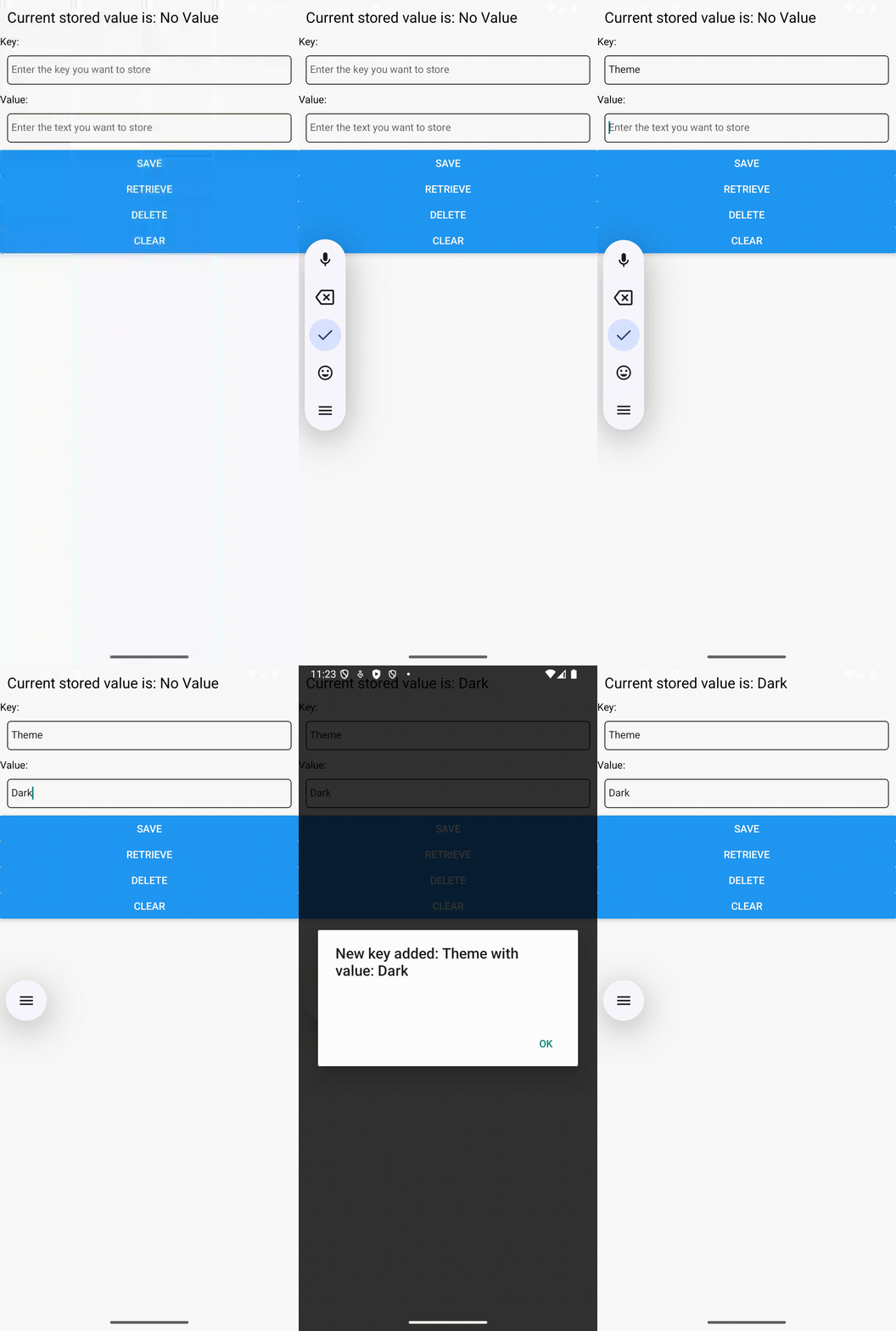
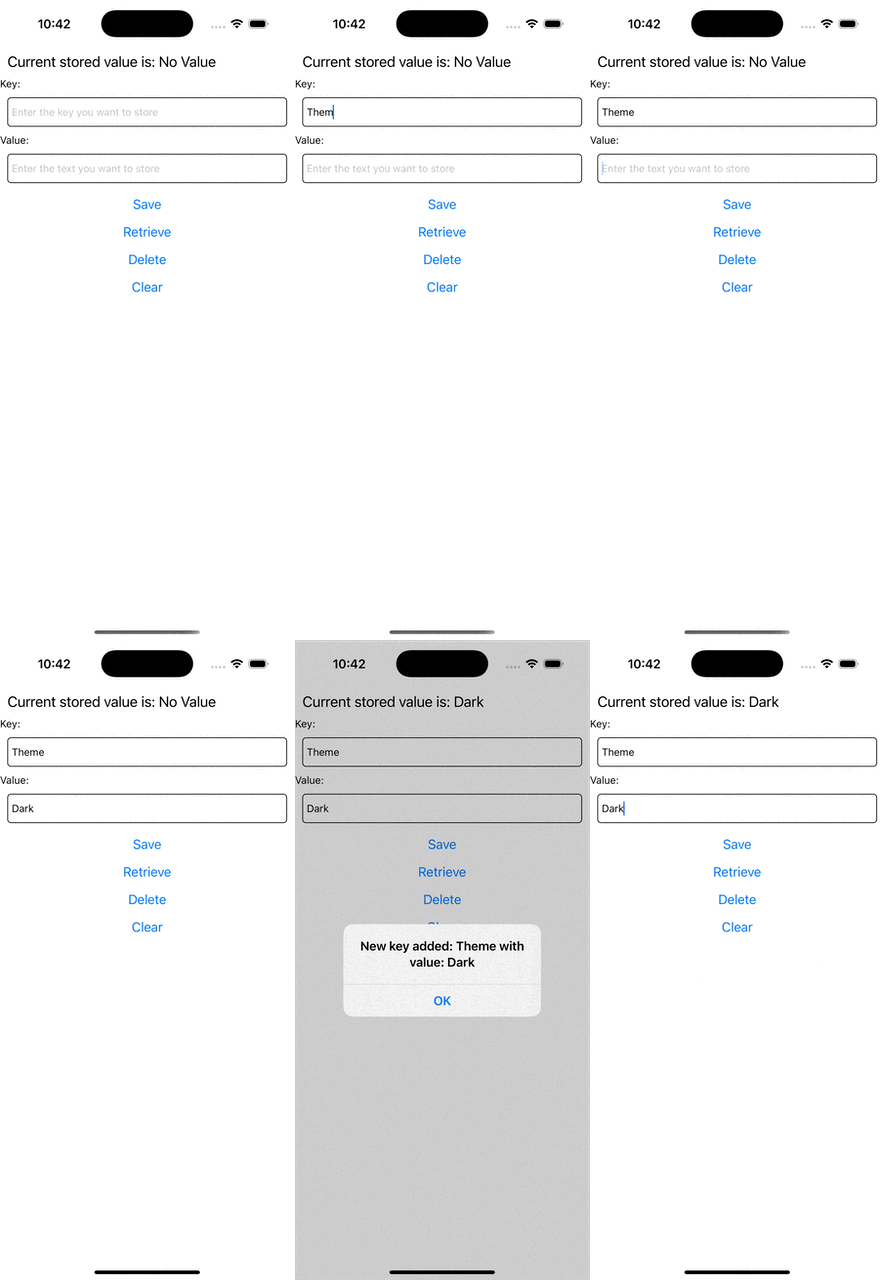
Si ahora intentas ejecutar tu app, deberías observar este comportamiento.
 |  |