Ta strona została przetłumaczona przez PageTurner AI (beta). Nie jest oficjalnie zatwierdzona przez projekt. Znalazłeś błąd? Zgłoś problem →
Wywoływanie natywnych funkcji w komponentach natywnych
W podstawowym przewodniku dotyczącym tworzenia nowych komponentów natywnych poznałeś już sposób tworzenia komponentów, przekazywania właściwości ze strony JS do natywnej oraz emitowania zdarzeń z warstwy natywnej do JS.
Komponenty niestandardowe mogą również imperatywnie wywoływać funkcje zaimplementowane w kodzie natywnym, aby osiągnąć bardziej zaawansowane funkcjonalności, takie jak programowe przeładowanie strony internetowej.
W tym przewodniku nauczysz się, jak to osiągnąć, korzystając z nowego konceptu: Poleceń natywnych (Native Commands).
Ten przewodnik kontynuuje tematykę komponentów natywnych i zakłada, że jesteś z nią zaznajomiony oraz że znasz działanie Codegen.
1. Aktualizacja specyfikacji komponentu
Pierwszym krokiem jest zaktualizowanie specyfikacji komponentu, aby zadeklarować NativeCommand.
- TypeScript
- Flow
Update the WebViewNativeComponent.ts as it follows:
import type {HostComponent, ViewProps} from 'react-native';
import type {BubblingEventHandler} from 'react-native/Libraries/Types/CodegenTypes';
import codegenNativeComponent from 'react-native/Libraries/Utilities/codegenNativeComponent';
+import codegenNativeCommands from 'react-native/Libraries/Utilities/codegenNativeCommands';

type WebViewScriptLoadedEvent = {
  result: 'success' | 'error';
};

export interface NativeProps extends ViewProps {
  sourceURL?: string;
  onScriptLoaded?: BubblingEventHandler<WebViewScriptLoadedEvent> | null;
}

+interface NativeCommands {
+    reload: (viewRef: React.ElementRef<HostComponent<NativeProps>>) => void;
+}

+export const Commands: NativeCommands = codegenNativeCommands<NativeCommands>({
+    supportedCommands: ['reload'],
+});

export default codegenNativeComponent<NativeProps>(
  'CustomWebView',
) as HostComponent<NativeProps>;
Update the WebViewNativeComponent.js as it follows:
// @flow strict-local

import type {HostComponent, ViewProps} from 'react-native';
import type {BubblingEventHandler} from 'react-native/Libraries/Types/CodegenTypes';
import codegenNativeComponent from 'react-native/Libraries/Utilities/codegenNativeComponent';
+import codegenNativeCommands from 'react-native/Libraries/Utilities/codegenNativeCommands';

type WebViewScriptLoadedEvent = $ReadOnly<{|
  result: "success" | "error",
|}>;

type NativeProps = $ReadOnly<{|
  ...ViewProps,
  sourceURL?: string;
  onScriptLoaded?: BubblingEventHandler<WebViewScriptLoadedEvent>?;
|}>;

+interface NativeCommands {
+    reload: (viewRef: React.ElementRef<HostComponent<NativeProps>>) => void;
+}

+export const Commands: NativeCommands = codegenNativeCommands<NativeCommands>({
+    supportedCommands: ['reload'],
+});

export default (codegenNativeComponent<NativeProps>(
  'CustomWebView',
): HostComponent<NativeProps>);
Wymaga to wykonania następujących czynności:
-
Zaimportuj funkcję
codegenNativeCommandszreact-native. To poinstruuje Codegen, że ma wygenerować kod dlaNativeCommands. -
Zdefiniuj interfejs zawierający metody, które chcemy wywoływać w warstwie natywnej. Wszystkie polecenia natywne muszą mieć pierwszy parametr typu
React.ElementRef. -
Eksportuj zmienną
Commands, będącą wynikiem wywołaniacodegenNativeCommandsz listą obsługiwanych poleceń.
W TypeScript typ React.ElementRef jest przestarzały. Poprawnym typem jest React.ComponentRef. Jednak z powodu błędu w Codegen, użycie ComponentRef spowoduje awarię aplikacji. Mamy już poprawkę, ale aby ją zastosować, musimy wydać nową wersję React Native.
2. Aktualizacja kodu aplikacji do użycia nowego polecenia
Teraz możesz użyć polecenia w aplikacji.
- TypeScript
- Flow
Open the App.tsx file and modify it as it follows:
import React from 'react';
-import {Alert, StyleSheet, View} from 'react-native';
-import WebView from '../specs/WebViewNativeComponent';
+import {Alert, StyleSheet, Pressable, Text, View} from 'react-native';
+import WebView, {Commands} from '../specs/WebViewNativeComponent';

function App(): React.JSX.Element {
+    const webViewRef = React.useRef<React.ElementRef<typeof View> | null>(null);
+
+    const refresh = () => {
+        if (webViewRef.current) {
+            Commands.reload(webViewRef.current);
+        }
+    };

  return (
    <View style={styles.container}>
      <WebView
+       ref={webViewRef}
        sourceURL="https://react.dev/"
        style={styles.webview}
        onScriptLoaded={() => {
          Alert.alert('Page Loaded');
        }}
      />
+      <View style={styles.tabbar}>
+        <Pressable onPress={refresh} style={styles.button}>
+            {({pressed}) => (
+                !pressed ? <Text style={styles.buttonText}>Refresh</Text> : <Text style={styles.buttonTextPressed}>Refresh</Text>) }
+        </Pressable>
+      </View>
    </View>
  );
}

const styles = StyleSheet.create({
  container: {
    flex: 1,
    alignItems: 'center',
    alignContent: 'center',
  },
  webview: {
    width: '100%',
-    height: '100%',
+    height: '90%',
  },
+  tabbar: {
+    flex: 1,
+    backgroundColor: 'gray',
+    width: '100%',
+    alignItems: 'center',
+    alignContent: 'center',
+  },
+  button: {
+    margin: 10,
+  },
+  buttonText: {
+    fontSize: 20,
+    fontWeight: 'bold',
+    color: '#00D6FF',
+    width: '100%',
+  },
+  buttonTextPressed: {
+    fontSize: 20,
+    fontWeight: 'bold',
+    color: '#00D6FF77',
+    width: '100%',
+  },
});

export default App;
Open the App.tsx file and modify it as it follows:
import React from 'react';
-import {Alert, StyleSheet, View} from 'react-native';
-import WebView from '../specs/WebViewNativeComponent';
+import {Alert, StyleSheet, Pressable, Text, View} from 'react-native';
+import WebView, {Commands} from '../specs/WebViewNativeComponent';

function App(): React.JSX.Element {
+    const webViewRef = React.useRef<React.ElementRef<typeof View> | null>(null);
+
+    const refresh = () => {
+        if (webViewRef.current) {
+            Commands.reload(webViewRef.current);
+        }
+    };

  return (
    <View style={styles.container}>
      <WebView
+       ref={webViewRef}
        sourceURL="https://react.dev/"
        style={styles.webview}
        onScriptLoaded={() => {
          Alert.alert('Page Loaded');
        }}
      />
+      <View style={styles.tabbar}>
+        <Pressable onPress={refresh} style={styles.button}>
+            {({pressed}) => (
+                !pressed ? <Text style={styles.buttonText}>Refresh</Text> : <Text style={styles.buttonTextPressed}>Refresh</Text>) }
+        </Pressable>
+      </View>
    </View>
  );
}

const styles = StyleSheet.create({
  container: {
    flex: 1,
    alignItems: 'center',
    alignContent: 'center',
  },
  webview: {
    width: '100%',
-    height: '100%',
+    height: '90%',
  },
+  tabbar: {
+    flex: 1,
+    backgroundColor: 'gray',
+    width: '100%',
+    alignItems: 'center',
+    alignContent: 'center',
+  },
+  button: {
+    margin: 10,
+  },
+  buttonText: {
+    fontSize: 20,
+    fontWeight: 'bold',
+    color: '#00D6FF',
+    width: '100%',
+  },
+  buttonTextPressed: {
+    fontSize: 20,
+    fontWeight: 'bold',
+    color: '#00D6FF77',
+    width: '100%',
+  },
});

export default App;
Kluczowe zmiany są następujące:
-
Zaimportuj stałą
Commandsz pliku specyfikacji. Polecenie to obiekt umożliwiający wywołanie metod dostępnych w warstwie natywnej. -
Zadeklaruj referencję do natywnego komponentu
WebViewza pomocąuseRef. Tę referencję musisz przekazać do polecenia natywnego. -
Zaimplementuj funkcję
refresh. Funkcja ta sprawdza, czy referencja do WebView nie jest nullem, a następnie wywołuje polecenie. -
Dodaj komponent Pressable, aby wywołać polecenie po naciśnięciu przycisku.
Pozostałe zmiany to standardowe modyfikacje w React służące dodaniu Pressable i stylizacji widoku dla lepszego wyglądu.
3. Ponowne uruchomienie Codegen
Po zaktualizowaniu specyfikacji i przygotowaniu kodu do użycia polecenia, czas na implementację kodu natywnego. Jednak zanim przejdziesz do pisania kodu natywnego, musisz ponownie uruchomić Codegen, aby wygenerował nowe typy potrzebne w kodzie natywnym.
- Android
- iOS
Codegen is executed through the generateCodegenArtifactsFromSchema Gradle task:
cd android
./gradlew generateCodegenArtifactsFromSchema

BUILD SUCCESSFUL in 837ms
14 actionable tasks: 3 executed, 11 up-to-date
This is automatically run when you build your Android application.
Codegen is run as part of the script phases that's automatically added to the project generated by CocoaPods.
cd ios
bundle install
bundle exec pod install
The output will look like this:
...
Framework build type is static library
[Codegen] Adding script_phases to ReactCodegen.
[Codegen] Generating ./build/generated/ios/ReactCodegen.podspec.json
[Codegen] Analyzing /Users/me/src/TurboModuleExample/package.json
[Codegen] Searching for codegen-enabled libraries in the app.
[Codegen] Found TurboModuleExample
[Codegen] Searching for codegen-enabled libraries in the project dependencies.
[Codegen] Found react-native
...
4. Implementacja kodu natywnego
Teraz czas zaimplementować zmiany natywne, które umożliwią Twojemu JS bezpośrednie wywoływanie metod na natywnym widoku.
- Android
- iOS
To let your view respond to the Native Command, you only have to modify the ReactWebViewManager.
If you try to build right now, the build will fail, because the current ReactWebViewManager does not implement the new reload method.
To fix the build error, let's modify the ReactWebViewManager to implement it.
- Java
- Kotlin
//...
  @ReactProp(name = "sourceUrl")
  @Override
  public void setSourceURL(ReactWebView view, String sourceURL) {
    if (sourceURL == null) {
      view.emitOnScriptLoaded(ReactWebView.OnScriptLoadedEventResult.error);
      return;
    }
    view.loadUrl(sourceURL, new HashMap<>());
  }

+  @Override
+  public void reload(ReactWebView view) {
+    view.reload();
+  }

  public static final String REACT_CLASS = "CustomWebView";
//...
  @ReactProp(name = "sourceUrl")
  override fun setSourceURL(view: ReactWebView, sourceURL: String?) {
    if (sourceURL == null) {
      view.emitOnScriptLoaded(ReactWebView.OnScriptLoadedEventResult.error)
      return;
    }
    view.loadUrl(sourceURL, emptyMap())
  }

+  override fun reload(view: ReactWebView) {
+    view.reload()
+  }

  companion object {
    const val REACT_CLASS = "CustomWebView"
  }
In this case, it's enough to call directly the view.reload() method because our ReactWebView inherits from the Android's WebView and it has a reload method directly available. If you are implementing a custom function, that is not available in your custom view, you might also have to implement the required method in the Android's View that is managed by the React Native's ViewManager.
To let your view respond to the Native Command, we need to implement a couple of methods on iOS.
Let's open the RCTWebView.mm file and let's modify it as it follows:
  // Event emitter convenience method
  - (const CustomWebViewEventEmitter &)eventEmitter
  {
  return static_cast<const CustomWebViewEventEmitter &>(*_eventEmitter);
  }

+  - (void)handleCommand:(const NSString *)commandName args:(const NSArray *)args
+  {
+  RCTCustomWebViewHandleCommand(self, commandName, args);
+  }
+
+  - (void)reload
+  {
+  [_webView reloadFromOrigin];
+  }

  + (ComponentDescriptorProvider)componentDescriptorProvider
  {
  return concreteComponentDescriptorProvider<CustomWebViewComponentDescriptor>();
  }
To make your view respond to the Native Commands, you need to apply the following changes:
- Add a
handleCommand:argsfunction. This function is invoked by the components infrastructure to handle the commands. The function implementation is similar for every component: you need to call anRCT<componentNameInJS>HandleCommandfunction that is generated by Codegen for you. TheRCT<componentNameInJS>HandleCommandperform a bunch of validation, verifying that the command that we need to invoke is among the supported ones and that the parameters passed matches the one expected. If all the checks pass, theRCT<componentNameInJS>HandleCommandwill then invoke the proper native method. - Implement the
reloadmethod. In this example, thereloadmethod calls thereloadFromOriginfunction of the WebKit's WebView.
5. Uruchomienie aplikacji
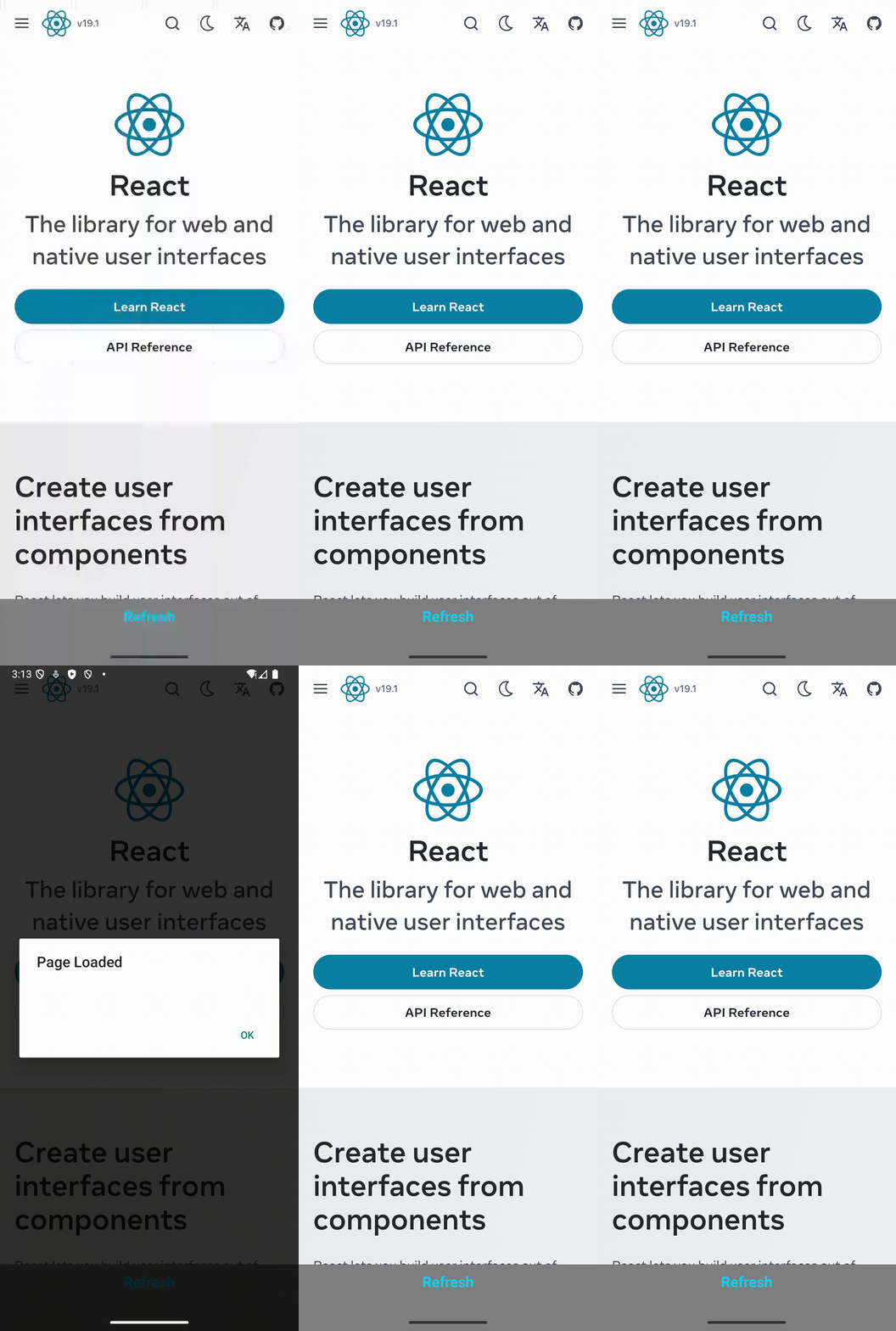
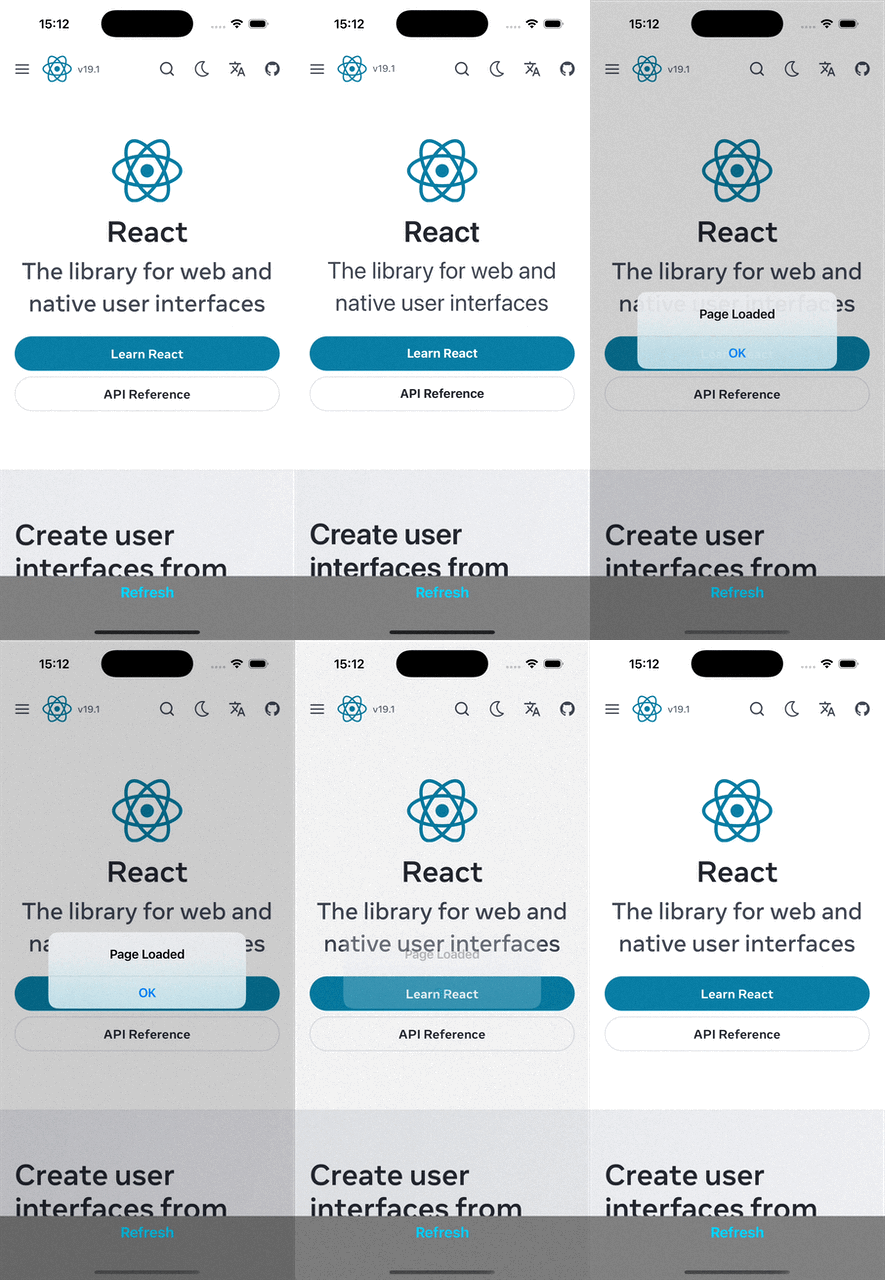
Na koniec możesz uruchomić aplikację standardowymi poleceniami. Gdy aplikacja będzie działać, możesz nacisnąć przycisk odświeżania, aby zobaczyć przeładowanie strony.
 |  |