React Native 开发者工具
本页面由 PageTurner AI 翻译(测试版)。未经项目官方认可。 发现错误? 报告问题 →
React Native DevTools 是我们专为 React Native 打造的现代化调试体验。它从底层全新构建,旨在比以往调试方法实现更深度的集成、更高的准确性和更强的可靠性。
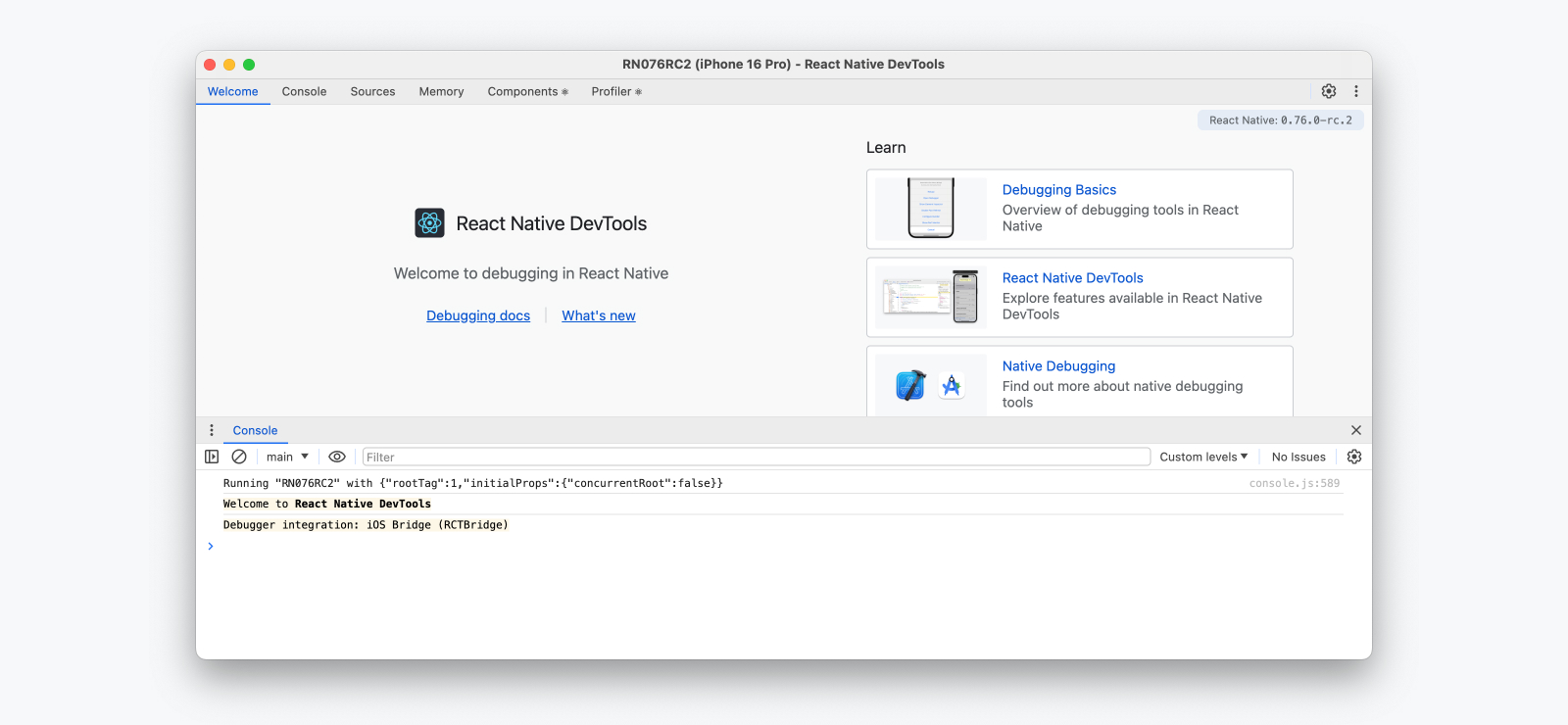
React Native DevTools 专注于解决 React 应用层的调试需求,并非用于替代原生工具。如需检查 React Native 底层平台相关功能(例如开发原生模块时),请使用 Android Studio 和 Xcode 中的调试工具(参见原生代码调试)。
💡 Compatibility — released in 0.76
React Native DevTools supports all React Native apps running Hermes. It replaces the previous Flipper, Experimental Debugger, and Hermes debugger (Chrome) frontends.
It is not possible to set up React Native DevTools with any older versions of React Native.
- Chrome Browser DevTools — unsupported
- Connecting to React Native via
chrome://inspectis no longer supported. Features may not work correctly, as the latest versions of Chrome DevTools (which are built to match the latest browser capabilities and APIs) have not been tested, and this frontend lacks our customisations. Instead, we ship a supported version with React Native DevTools.
- Connecting to React Native via
- Visual Studio Code — unsupported (pre-existing)
- Third party extensions such as Expo Tools and Radon IDE may have improved compatibility, but are not directly supported by the React team.
💡 Feedback & FAQs
We want the tooling you use to debug React across all platforms to be reliable, familiar, simple, and cohesive. All the features described on this page are built with these principles in mind, and we also want to offer more capabilities in future.
We are actively iterating on the future of React Native DevTools, and have created a centralized GitHub discussion to keep track of issues, frequently asked questions, and feedback.
核心功能
React Native DevTools 基于 Chrome DevTools 前端实现。如果您有 Web 开发背景,其功能界面会倍感熟悉。建议您先浏览Chrome DevTools 文档,其中包含完整指南和视频资源。
控制台
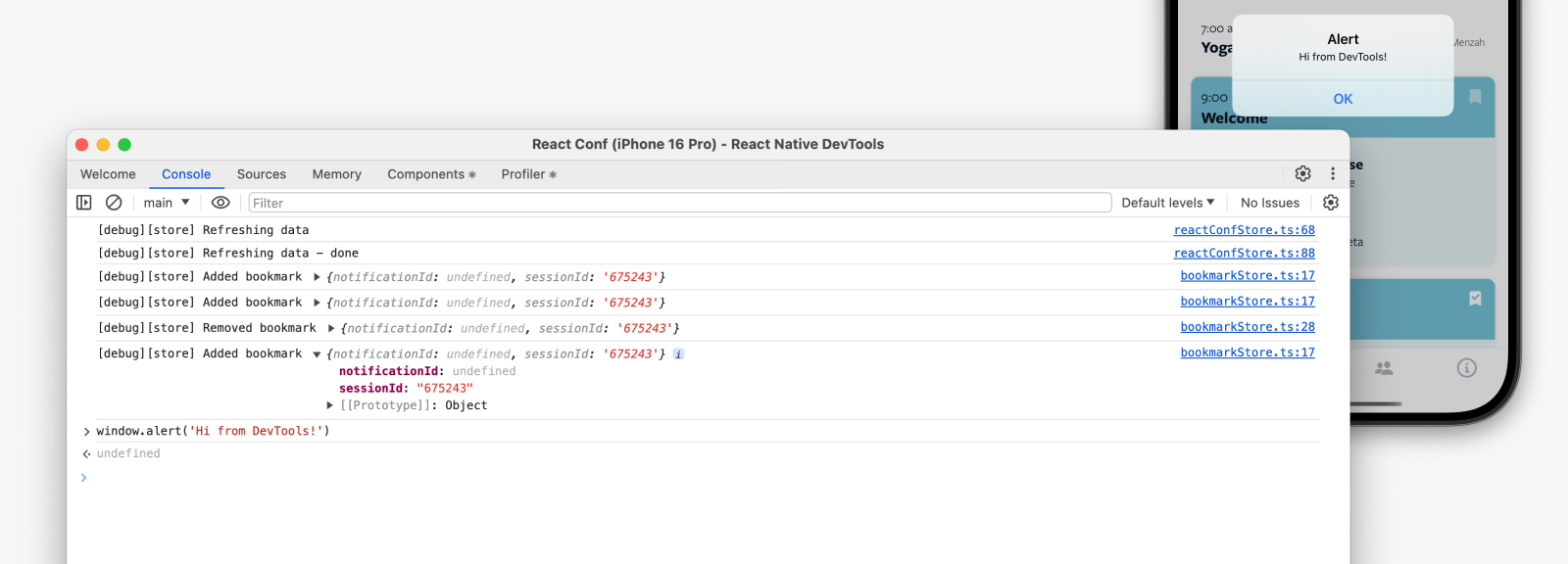
控制台面板支持查看/筛选消息、执行 JavaScript、检查对象属性等功能。
实用技巧
源代码与断点
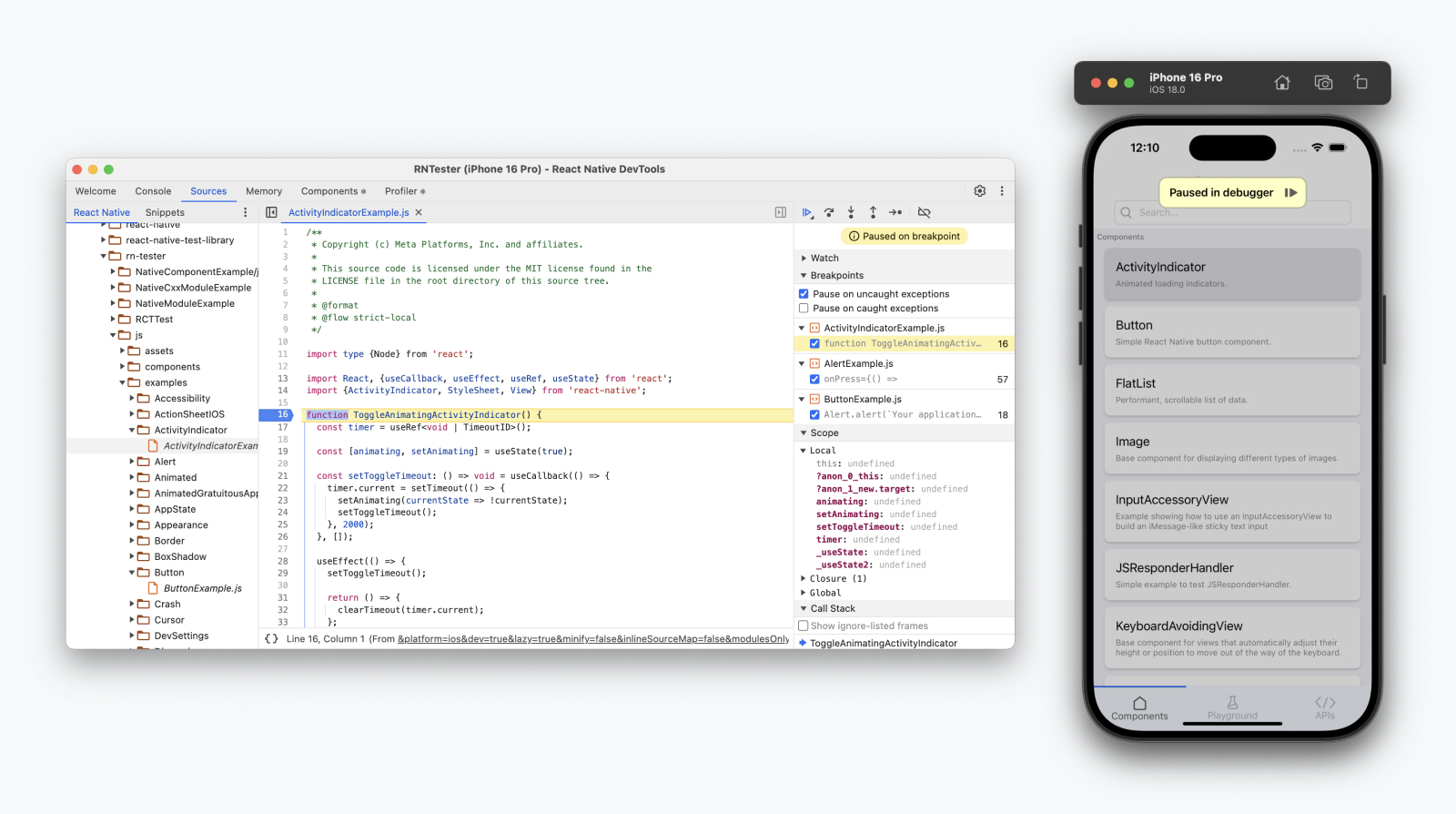
源代码面板支持查看应用源文件并设置断点。断点用于指定程序暂停执行的代码行,便于检查实时状态并逐行调试。
实用技巧
-
应用暂停时将显示"调试暂停"覆盖层,点击即可继续
-
触发断点时注意右侧面板,可检查当前作用域、调用堆栈并设置监控表达式
-
在代码编辑器中使用
debugger;语句快速设置断点,该变更会通过快速刷新即时同步到设备 -
断点类型多样!例如条件断点与日志点
内存分析
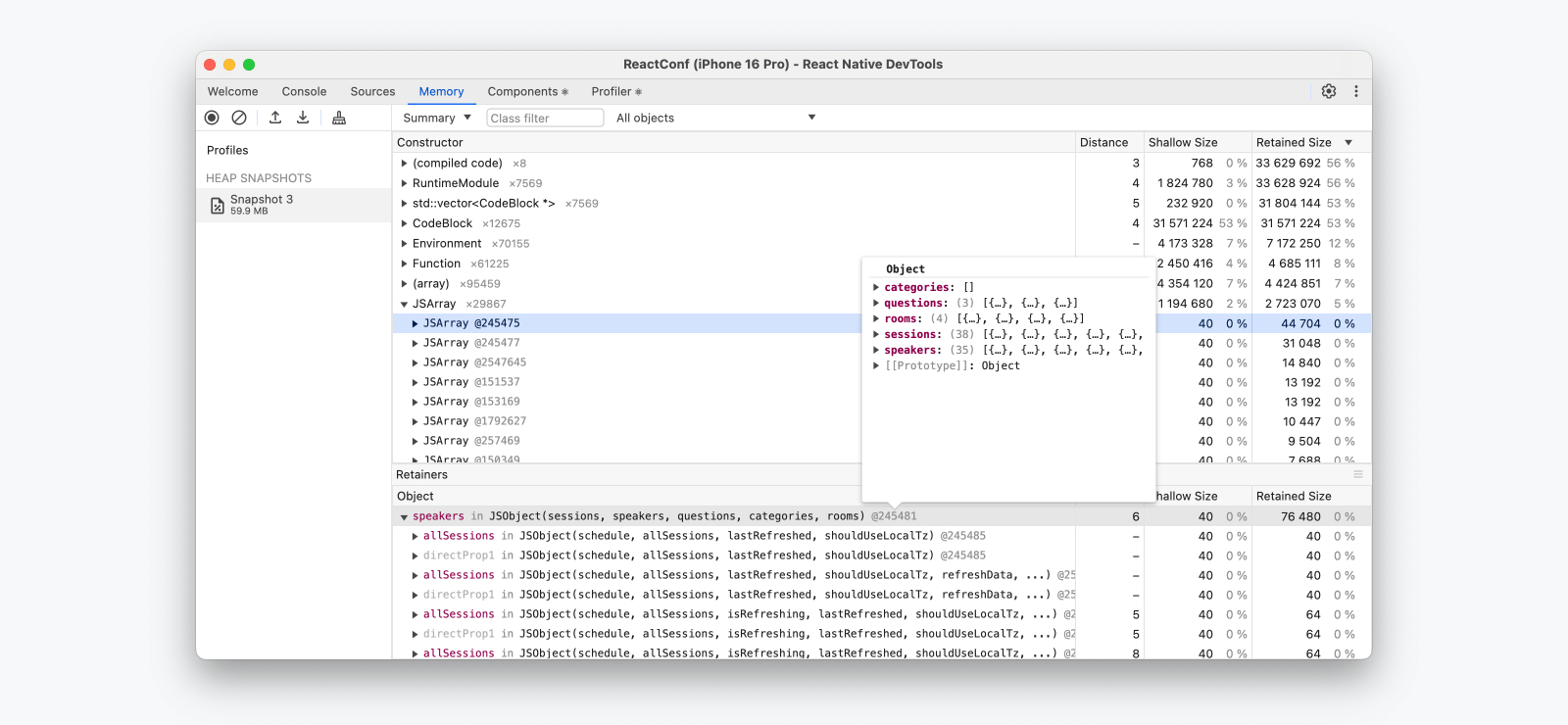
内存面板支持获取堆快照,并监测 JavaScript 代码随时间变化的内存使用情况。
实用技巧
-
使用 Cmd ⌘+F / Ctrl+F 在堆中筛选特定对象
-
创建分配时间线报告可帮助查看内存使用随时间变化的图表,识别潜在内存泄漏
React DevTools 功能
在集成的"组件(Components)"和"性能分析器(Profiler)"面板中,您将体验到完整版React DevTools浏览器扩展的功能,这些功能在React Native DevTools中可无缝使用
React组件
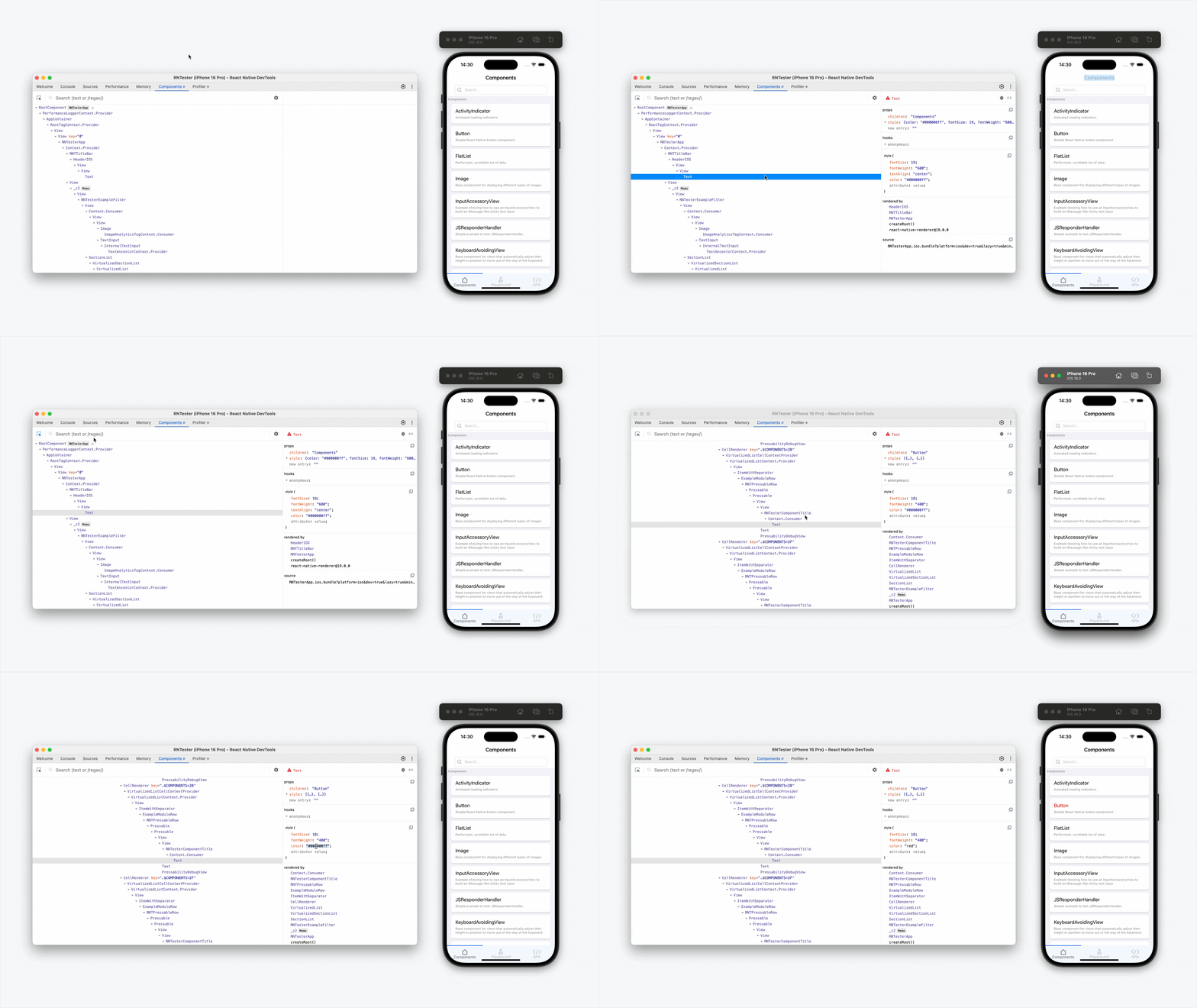
React组件面板允许您检查和更新渲染中的React组件树
-
在开发者工具中悬停或选中元素,设备上会高亮显示对应元素
-
要定位开发者工具中的元素,点击左上角"选择元素"按钮,然后在应用中点击任意元素
实用技巧
-
组件的props和state可在运行时通过右侧面板查看和修改
-
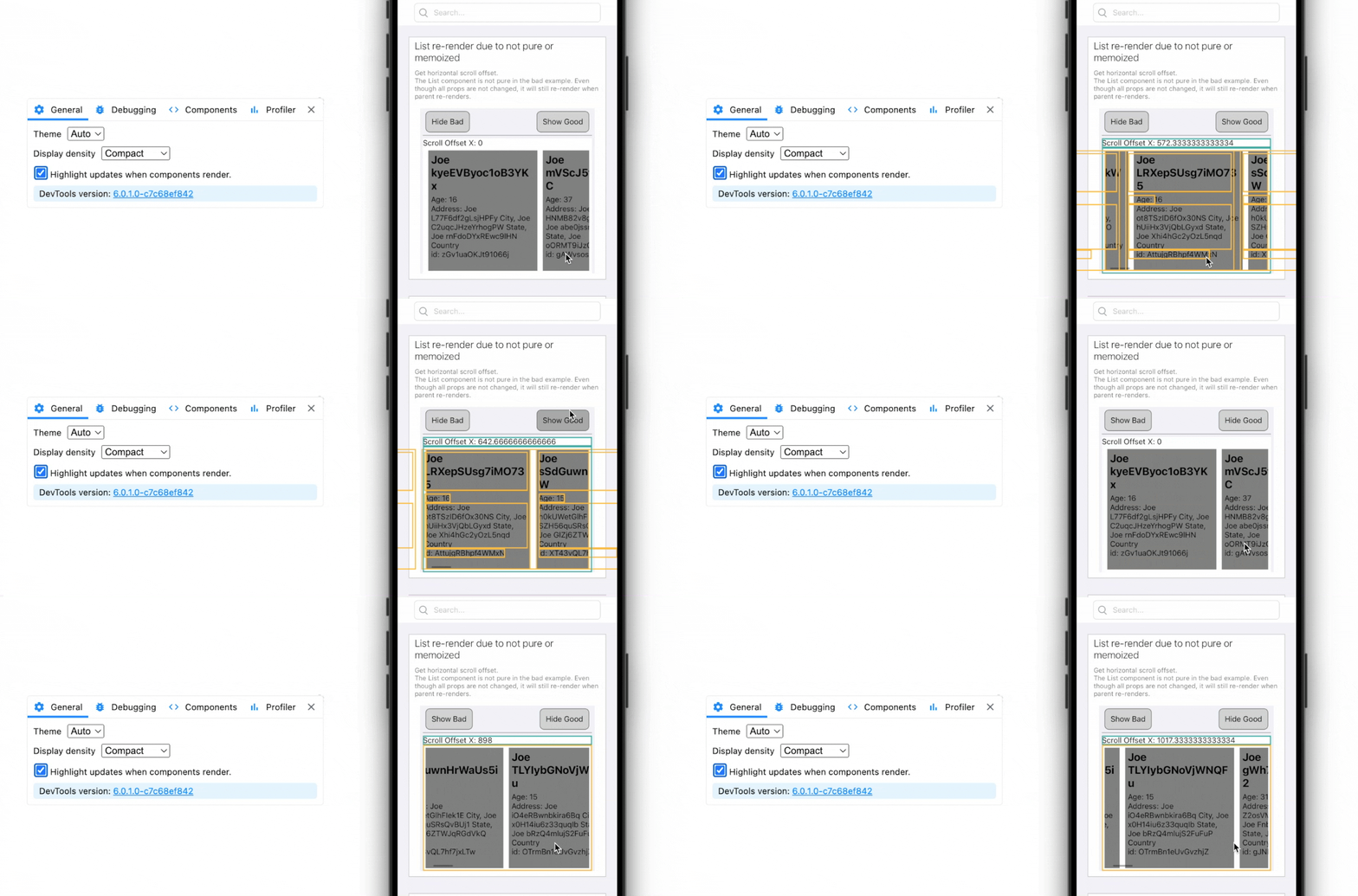
使用React Compiler优化的组件会显示"Memo ✨"标记
React性能分析器
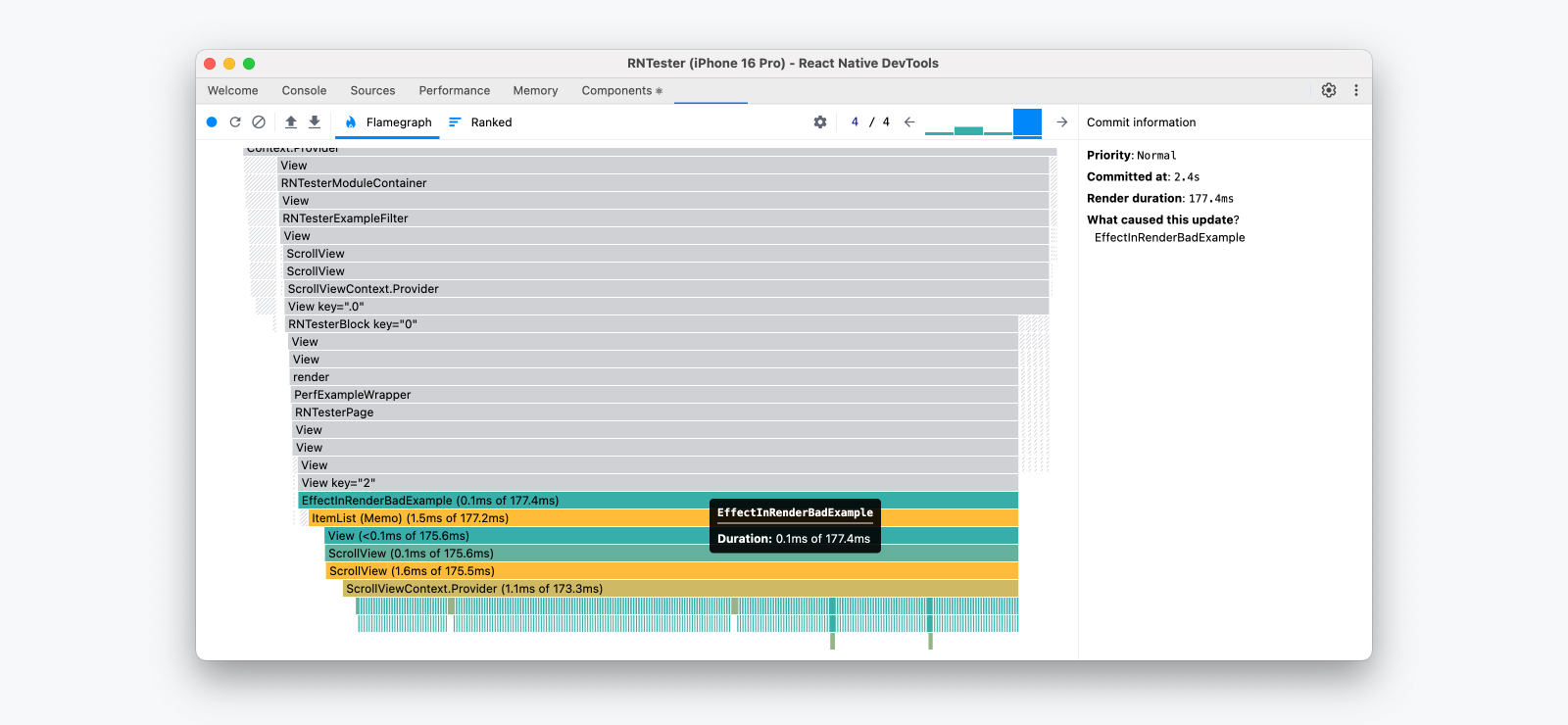
React性能分析器面板可记录性能分析数据,帮助理解组件渲染和React提交(commit)的时间分布
更多信息请参阅2018年原始指南(请注意部分内容可能已过时)
重新连接开发者工具
开发者工具偶尔会与目标设备断开连接,可能发生在以下情况:
-
应用关闭时
-
应用重新构建时(安装了新的原生构建版本)
-
应用在原生端崩溃时
-
开发服务器(Metro)退出时
-
物理设备断开连接时
断开连接时会显示对话框提示"调试连接已关闭"
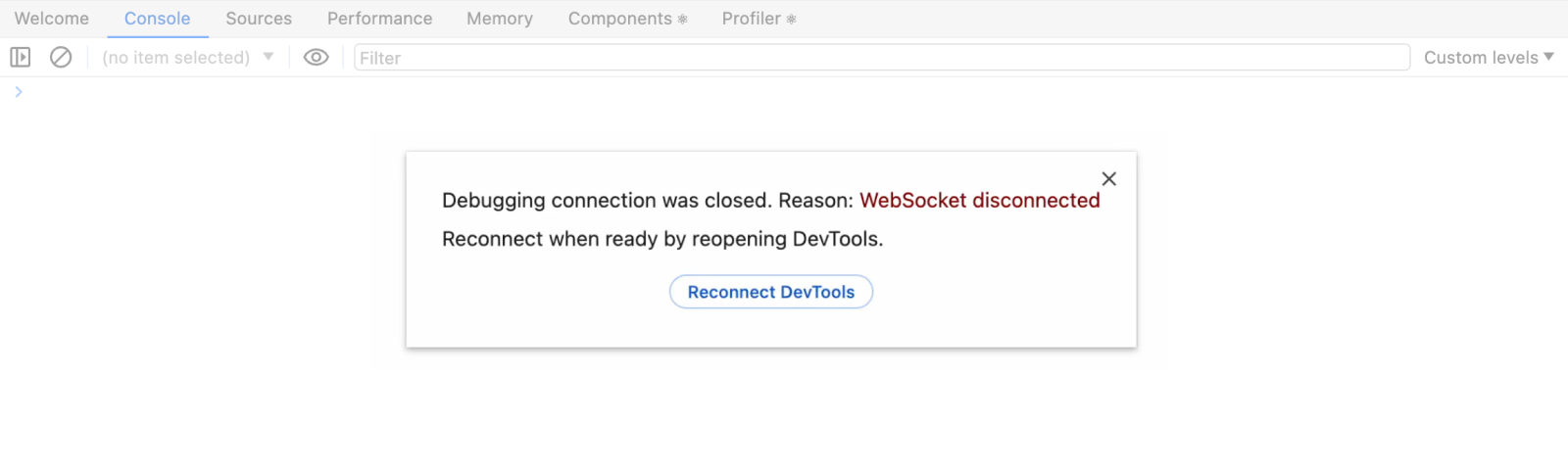
此时您可以选择:
-
关闭:点击关闭图标(
×)或对话框外部区域,返回断开连接前的开发者工具界面 -
重新连接:选择"重新连接开发者工具",需先解决导致断开的问题