调试基础
本页面由 PageTurner AI 翻译(测试版)。未经项目官方认可。 发现错误? 报告问题 →
调试功能(如开发者菜单、LogBox 和 React Native DevTools)在发布(生产)版本中会被禁用。
打开开发者菜单
React Native 提供了内置的开发者菜单用于访问调试功能。您可以通过摇动设备或使用键盘快捷键打开开发者菜单:
-
iOS 模拟器:Ctrl + Cmd ⌘ + Z(或选择 Device > Shake)
-
Android 模拟器:Cmd ⌘ + M(macOS)或 Ctrl + M(Windows 和 Linux)
替代方案(Android):adb shell input keyevent 82。
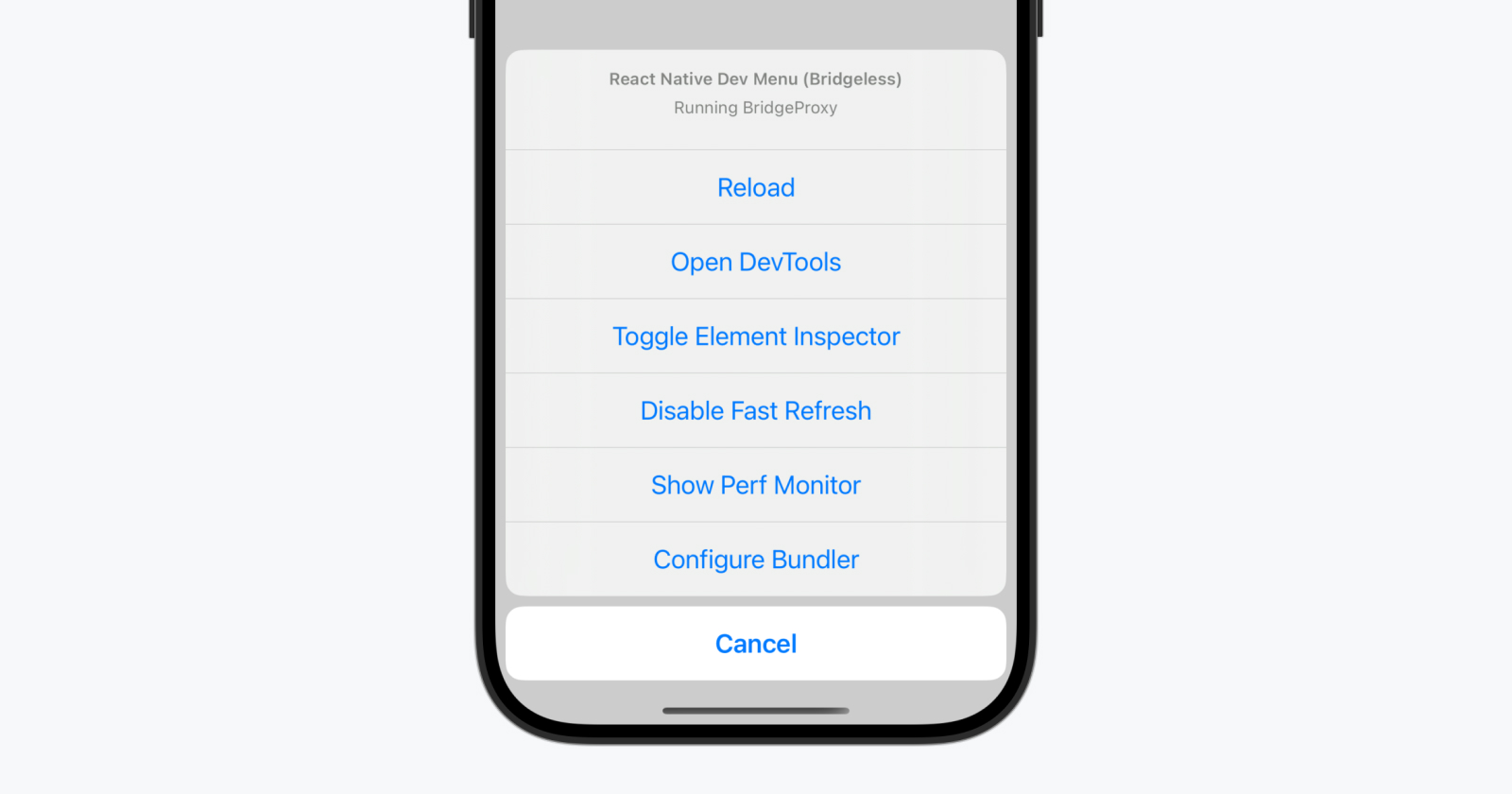
打开 DevTools
React Native DevTools 是我们为 React Native 内置的调试器。它让您可以像在网页浏览器中那样检查并理解 JavaScript 代码的运行情况。
打开 DevTools 有两种方式:
-
在开发者菜单中选择 "Open DevTools"。
-
在命令行界面(CLI)中按 j(需运行
npx react-native start)。
首次启动时,DevTools 会显示欢迎面板,同时打开控制台抽屉供您查看日志并与 JavaScript 运行时交互。您可以通过窗口顶部的导航栏访问其他面板,包括集成的 React 组件检查器和性能分析器。
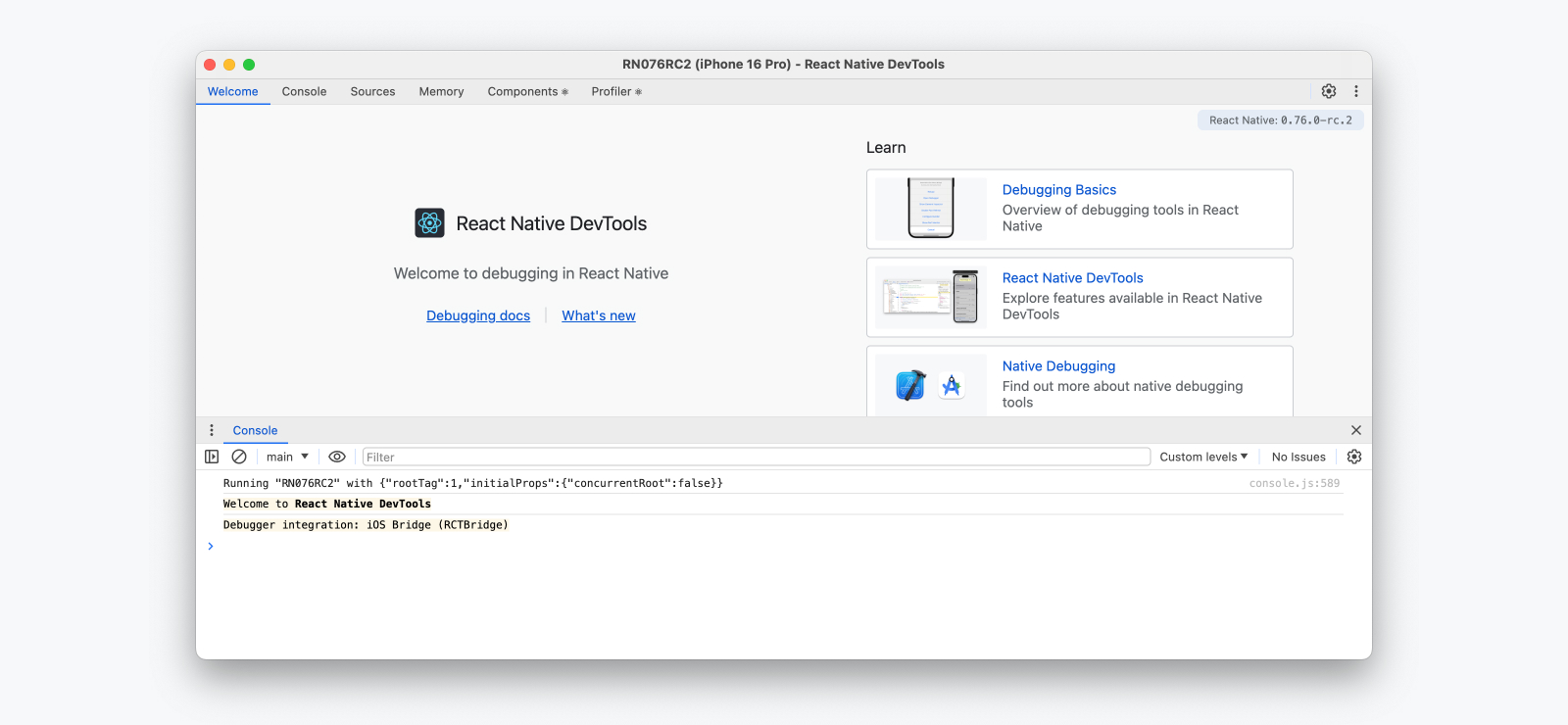
React Native DevTools 基于内置的专用调试架构开发,使用了定制的 Chrome DevTools 前端。这让我们能够提供深度集成、端到端可靠的浏览器式调试体验。
了解更多请参阅我们的 React Native DevTools 指南。
React Native DevTools 仅在启用 Hermes 引擎时可用,且需要安装 Google Chrome 或 Microsoft Edge。
Flipper 和其他调试工具
React Native DevTools 取代了之前的 Flipper、实验性调试器和 Hermes 调试器(Chrome)前端。如果您使用的是旧版 React Native,请查阅对应版本的文档。
对于使用 JavaScriptCore 而非 Hermes 的应用,直接 JSC 调试仍然可用(参见其他调试方法)。
React Native DevTools 专为解决 React 应用调试问题设计,并非用于替代原生工具。如需检查 React Native 底层平台实现(例如开发原生模块时),请使用 Xcode 和 Android Studio 中的调试工具(参见调试原生代码)。
其他有用链接:
LogBox
LogBox 是应用内显示警告和错误日志的工具。
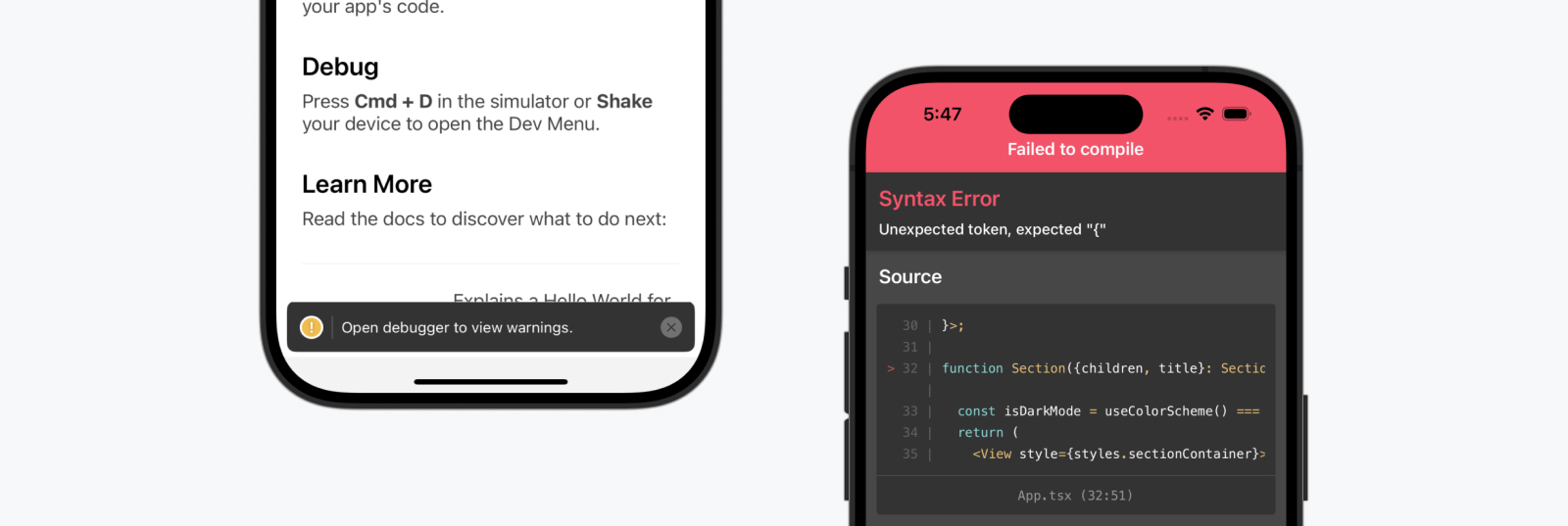
致命错误
当发生不可恢复的错误(如 JavaScript 语法错误)时,LogBox 会打开并显示错误位置。此时 LogBox 无法关闭,因为代码无法执行。LogBox 会在语法错误修复后自动关闭——无论是通过快速刷新(Fast Refresh)还是手动重新加载。
控制台错误与警告
控制台错误和警告会以屏幕通知形式显示,带有红色或黄色标识。
-
错误显示时包含通知计数。点击通知可查看详情并翻阅其他日志。
-
警告显示通知横幅但不包含细节,提示您打开 React Native DevTools。
当 React Native DevTools 处于开启状态时,除致命错误外的所有错误都会被 LogBox 隐藏。由于 LogBox 的各种设置可能隐藏或调整某些日志级别,我们建议将 React Native DevTools 中的控制台面板作为主要信息来源。
💡 Ignoring logs
LogBox can be configured via the LogBox API.
import {LogBox} from 'react-native';
Ignore all logs
LogBox notifications can be disabled using LogBox.ignoreAllLogs(). This can be useful in situations such as giving product demos.
LogBox.ignoreAllLogs();
Ignore specific logs
Notifications can be disabled on a per-log basis via LogBox.ignoreLogs(). This can be useful for noisy warnings or those that cannot be fixed, e.g. in a third-party dependency.
LogBox.ignoreLogs([
  // Exact message
  'Warning: componentWillReceiveProps has been renamed',

  // Substring or regex match
  /GraphQL error: .*/,
]);
LogBox will treat certain errors from React as warnings, which will mean they don't display as an in-app error notification. Advanced users can change this behaviour by customising LogBox's warning filter using LogBoxData.setWarningFilter().
性能监控器
在 Android 和 iOS 上,开发过程中可通过开发者菜单选择 "Perf Monitor" 来切换应用内性能悬浮窗。详细了解此功能请访问性能文档。
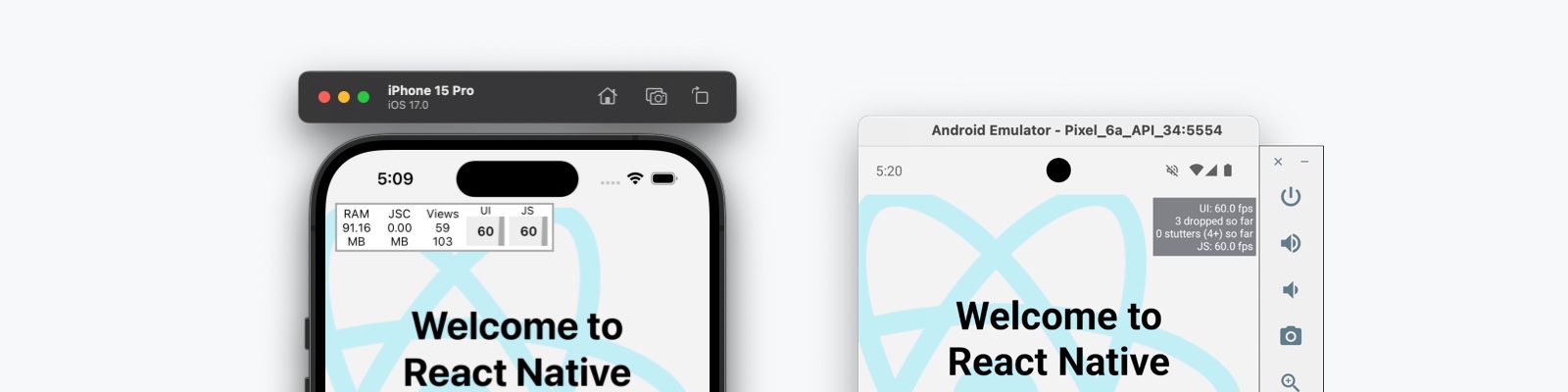
性能监控器在应用内运行,仅供参考。我们建议使用 Android Studio 和 Xcode 的原生工具进行精确的性能测量。