与现有应用集成
本页面由 PageTurner AI 翻译(测试版)。未经项目官方认可。 发现错误? 报告问题 →
React Native 非常适合从零开始构建全新的移动应用。同时,它也适用于在现有原生应用中添加单个视图或用户流程。只需几个步骤,你就能添加基于 React Native 的新功能、屏幕、视图等。
具体步骤因目标平台而异。
- Android (Java & Kotlin)
- iOS (Objective-C and Swift)
本页面由 PageTurner AI 翻译(测试版)。未经项目官方认可。 发现错误? 报告问题 →
核心概念
将 React Native 组件集成到 Android 应用程序的关键步骤包括:
-
建立正确的目录结构
-
安装必要的 NPM 依赖项
-
在 Gradle 配置中添加 React Native
-
编写首个 React Native 屏幕的 TypeScript 代码
-
通过 ReactActivity 将 React Native 集成到 Android 代码中
-
运行打包器测试集成效果并查看应用运行情况
使用社区模板
在遵循本指南时,建议您参考 React Native 社区模板。该模板包含一个精简的 Android 应用,能帮助您理解如何将 React Native 集成到现有 Android 应用中。
准备工作
请先按照设置开发环境和无框架使用 React Native指南配置 Android 应用的 React Native 开发环境。
本指南同时假设您熟悉 Android 开发基础知识,例如创建 Activity 和编辑 AndroidManifest.xml 文件。
1. 设置目录结构
为确保流程顺畅,请为集成项目创建新文件夹,并将现有 Android 项目移动到 /android 子目录。
2. 安装 NPM 依赖项
进入项目根目录后运行以下命令:
curl -O https://raw.githubusercontent.com/react-native-community/template/refs/heads/0.81-stable/template/package.json
This will copy the package.json file from the Community template to your project.
接着运行以下命令安装 NPM 包:
- npm
- Yarn
npm install
yarn install
安装过程将创建新的 node_modules 文件夹,该文件夹存储了构建项目所需的所有 JavaScript 依赖项。
Add node_modules/ to your .gitignore file (here the Community default one).
3. 添加 React Native 到应用
配置 Gradle
React Native 使用 React Native Gradle 插件来配置依赖项和项目设置。
First, let's edit your settings.gradle file by adding those lines (as suggested from the Community template):
// Configures the React Native Gradle Settings plugin used for autolinking
pluginManagement { includeBuild("../node_modules/@react-native/gradle-plugin") }
plugins { id("com.facebook.react.settings") }
extensions.configure(com.facebook.react.ReactSettingsExtension){ ex -> ex.autolinkLibrariesFromCommand() }
// If using .gradle.kts files:
// extensions.configure<com.facebook.react.ReactSettingsExtension> { autolinkLibrariesFromCommand() }
includeBuild("../node_modules/@react-native/gradle-plugin")

// Include your existing Gradle modules here.
// include(":app")
Then you need to open your top level build.gradle and include this line (as suggested from the Community template):
buildscript {
    repositories {
        google()
        mavenCentral()
    }
    dependencies {
        classpath("com.android.tools.build:gradle:7.3.1")
+       classpath("com.facebook.react:react-native-gradle-plugin")
    }
}
This makes sure the React Native Gradle Plugin (RNGP) is available inside your project.
Finally, add those lines inside your Applications's build.gradle file (it's a different build.gradle file usually inside your app folder - you can use the Community template file as reference):
apply plugin: "com.android.application"
+apply plugin: "com.facebook.react"

repositories {
    mavenCentral()
}

dependencies {
    // Other dependencies here
+   // Note: we intentionally don't specify the version number here as RNGP will take care of it.
+   // If you don't use the RNGP, you'll have to specify version manually.
+   implementation("com.facebook.react:react-android")
+   implementation("com.facebook.react:hermes-android")
}

+react {
+   // Needed to enable Autolinking - https://github.com/react-native-community/cli/blob/master/docs/autolinking.md
+   autolinkLibrariesWithApp()
+}
Finally, open your application gradle.properties files and add the following line (here the Community template file as reference):
+reactNativeArchitectures=armeabi-v7a,arm64-v8a,x86,x86_64
+newArchEnabled=true
+hermesEnabled=true
配置清单文件
首先确保 AndroidManifest.xml 中包含网络权限:
<manifest xmlns:android="http://schemas.android.com/apk/res/android">

+   <uses-permission android:name="android.permission.INTERNET" />

    <application
      android:name=".MainApplication">
    </application>
</manifest>
接着在调试版 AndroidManifest.xml 中启用明文传输:
<?xml version="1.0" encoding="utf-8"?>
<manifest xmlns:android="http://schemas.android.com/apk/res/android"
    xmlns:tools="http://schemas.android.com/tools">

    <application
+       android:usesCleartextTraffic="true"
+       tools:targetApi="28"
    />
</manifest>
As usual, here the AndroidManifest.xml file from the Community template to use as a reference: main and debug.
这是因为你的应用需要通过 HTTP 协议与本地打包器 Metro 进行通信。
请确保仅在调试清单中添加此项配置。
4. 编写 TypeScript 代码
现在我们将实际修改原生 Android 应用来集成 React Native。
我们要编写的第一段代码是将要集成到应用中的新屏幕的 React Native 实际代码。
创建 index.js 文件
首先在 React Native 项目的根目录创建一个空的 index.js 文件。
index.js 是 React Native 应用的入口文件且必须存在。它可以是一个import其他 React Native 组件或应用文件的小文件,也可以包含所需全部代码。
Our index.js should look as follows (here the Community template file as reference):
import {AppRegistry} from 'react-native';
import App from './App';

AppRegistry.registerComponent('HelloWorld', () => App);
创建 App.tsx 文件
Let's create an App.tsx file. This is a TypeScript file that can have JSX expressions. It contains the root React Native component that we will integrate into our Android application (link):
import React from 'react';
import {
  SafeAreaView,
  ScrollView,
  StatusBar,
  StyleSheet,
  Text,
  useColorScheme,
  View,
} from 'react-native';

import {
  Colors,
  DebugInstructions,
  Header,
  ReloadInstructions,
} from 'react-native/Libraries/NewAppScreen';

function App(): React.JSX.Element {
  const isDarkMode = useColorScheme() === 'dark';

  const backgroundStyle = {
    backgroundColor: isDarkMode ? Colors.darker : Colors.lighter,
  };

  return (
    <SafeAreaView style={backgroundStyle}>
      <StatusBar
        barStyle={isDarkMode ? 'light-content' : 'dark-content'}
        backgroundColor={backgroundStyle.backgroundColor}
      />
      <ScrollView
        contentInsetAdjustmentBehavior="automatic"
        style={backgroundStyle}>
        <Header />
        <View
          style={{
            backgroundColor: isDarkMode
              ? Colors.black
              : Colors.white,
            padding: 24,
          }}>
          <Text style={styles.title}>Step One</Text>
          <Text>
            Edit <Text style={styles.bold}>App.tsx</Text> to
            change this screen and see your edits.
          </Text>
          <Text style={styles.title}>See your changes</Text>
          <ReloadInstructions />
          <Text style={styles.title}>Debug</Text>
          <DebugInstructions />
        </View>
      </ScrollView>
    </SafeAreaView>
  );
}

const styles = StyleSheet.create({
  title: {
    fontSize: 24,
    fontWeight: '600',
  },
  bold: {
    fontWeight: '700',
  },
});

export default App;
Here is the Community template file as reference.
5. 与 Android 代码集成
现在我们需要添加一些原生代码来启动 React Native 运行时并渲染 React 组件。
更新 Application 类
首先更新 Application 类以正确初始化 React Native:
- Java
- Kotlin
package <your-package-here>;

import android.app.Application;
+import com.facebook.react.PackageList;
+import com.facebook.react.ReactApplication;
+import com.facebook.react.ReactHost;
+import com.facebook.react.ReactNativeHost;
+import com.facebook.react.ReactPackage;
+import com.facebook.react.defaults.DefaultNewArchitectureEntryPoint;
+import com.facebook.react.defaults.DefaultReactHost;
+import com.facebook.react.defaults.DefaultReactNativeHost;
+import com.facebook.soloader.SoLoader;
+import com.facebook.react.soloader.OpenSourceMergedSoMapping
+import java.util.List;

-class MainApplication extends Application {
+class MainApplication extends Application implements ReactApplication {
+ @Override
+ public ReactNativeHost getReactNativeHost() {
+   return new DefaultReactNativeHost(this) {
+     @Override
+     protected List<ReactPackage> getPackages() { return new PackageList(this).getPackages(); }
+     @Override
+     protected String getJSMainModuleName() { return "index"; }
+     @Override
+     public boolean getUseDeveloperSupport() { return BuildConfig.DEBUG; }
+     @Override
+     protected boolean isNewArchEnabled() { return BuildConfig.IS_NEW_ARCHITECTURE_ENABLED; }
+     @Override
+     protected Boolean isHermesEnabled() { return BuildConfig.IS_HERMES_ENABLED; }
+   };
+ }

+ @Override
+ public ReactHost getReactHost() {
+   return DefaultReactHost.getDefaultReactHost(getApplicationContext(), getReactNativeHost());
+ }

  @Override
  public void onCreate() {
    super.onCreate();
+   SoLoader.init(this, OpenSourceMergedSoMapping);
+   if (BuildConfig.IS_NEW_ARCHITECTURE_ENABLED) {
+     DefaultNewArchitectureEntryPoint.load();
+   }
  }
}
// package <your-package-here>

import android.app.Application
+import com.facebook.react.PackageList
+import com.facebook.react.ReactApplication
+import com.facebook.react.ReactHost
+import com.facebook.react.ReactNativeHost
+import com.facebook.react.ReactPackage
+import com.facebook.react.defaults.DefaultNewArchitectureEntryPoint.load
+import com.facebook.react.defaults.DefaultReactHost.getDefaultReactHost
+import com.facebook.react.defaults.DefaultReactNativeHost
+import com.facebook.soloader.SoLoader
+import com.facebook.react.soloader.OpenSourceMergedSoMapping

-class MainApplication : Application() {
+class MainApplication : Application(), ReactApplication {

+ override val reactNativeHost: ReactNativeHost =
+      object : DefaultReactNativeHost(this) {
+        override fun getPackages(): List<ReactPackage> = PackageList(this).packages
+        override fun getJSMainModuleName(): String = "index"
+        override fun getUseDeveloperSupport(): Boolean = BuildConfig.DEBUG
+        override val isNewArchEnabled: Boolean = BuildConfig.IS_NEW_ARCHITECTURE_ENABLED
+        override val isHermesEnabled: Boolean = BuildConfig.IS_HERMES_ENABLED
+      }

+ override val reactHost: ReactHost
+   get() = getDefaultReactHost(applicationContext, reactNativeHost)

  override fun onCreate() {
    super.onCreate()
+   SoLoader.init(this, OpenSourceMergedSoMapping)
+   if (BuildConfig.IS_NEW_ARCHITECTURE_ENABLED) {
+     load()
+   }
  }
}
As usual, here the MainApplication.kt Community template file as reference.
创建 ReactActivity
最后需要创建继承 ReactActivity 的新 Activity 来托管 React Native 代码。该 Activity 负责启动 React Native 运行时并渲染 React 组件。
- Java
- Kotlin
// package <your-package-here>;

import com.facebook.react.ReactActivity;
import com.facebook.react.ReactActivityDelegate;
import com.facebook.react.defaults.DefaultNewArchitectureEntryPoint;
import com.facebook.react.defaults.DefaultReactActivityDelegate;

public class MyReactActivity extends ReactActivity {

    @Override
    protected String getMainComponentName() {
        return "HelloWorld";
    }

    @Override
    protected ReactActivityDelegate createReactActivityDelegate() {
        return new DefaultReactActivityDelegate(this, getMainComponentName(), DefaultNewArchitectureEntryPoint.getFabricEnabled());
    }
}
// package <your-package-here>

import com.facebook.react.ReactActivity
import com.facebook.react.ReactActivityDelegate
import com.facebook.react.defaults.DefaultNewArchitectureEntryPoint.fabricEnabled
import com.facebook.react.defaults.DefaultReactActivityDelegate

class MyReactActivity : ReactActivity() {

    override fun getMainComponentName(): String = "HelloWorld"

    override fun createReactActivityDelegate(): ReactActivityDelegate =
        DefaultReactActivityDelegate(this, mainComponentName, fabricEnabled)
}
As usual, here the MainActivity.kt Community template file as reference.
创建新 Activity 后,需将其添加到 AndroidManifest.xml 文件中。同时必须将 MyReactActivity 的主题设置为 Theme.AppCompat.Light.NoActionBar(或任何非 ActionBar 主题),否则应用会在 React Native 界面上方渲染操作栏:
<manifest xmlns:android="http://schemas.android.com/apk/res/android">

    <uses-permission android:name="android.permission.INTERNET" />

    <application
      android:name=".MainApplication">

+     <activity
+       android:name=".MyReactActivity"
+       android:label="@string/app_name"
+       android:theme="@style/Theme.AppCompat.Light.NoActionBar">
+     </activity>
    </application>
</manifest>
现在你的 Activity 已准备好运行 JavaScript 代码。
6. 测试集成
已完成 React Native 与应用程序集成的基本步骤。现在我们将启动 Metro 打包工具,将 TypeScript 应用代码编译成资源包。Metro 的 HTTP 服务器在您的开发环境中通过 localhost 将资源包共享给模拟器或真机,从而实现热重载功能。
首先在项目根目录创建如下内容的 metro.config.js 文件:
const {getDefaultConfig} = require('@react-native/metro-config');
module.exports = getDefaultConfig(__dirname);
You can checkout the metro.config.js file from the Community template file as reference.
配置文件就绪后,即可运行打包器。在项目根目录下运行以下命令:
- npm
- Yarn
npm start
yarn start
现在像往常一样构建并运行你的 Android 应用。
当应用进入 React 驱动的界面时,会从开发服务器加载 JavaScript 代码并显示:

在 Android Studio 中创建发布版本
你也可以使用 Android Studio 创建发布版本!操作过程与原生的 Android 应用发布构建同样便捷。
React Native Gradle 插件会自动将 JS 代码打包到 APK/App Bundle 中。
若不使用 Android Studio,可通过以下命令创建发布版本:
cd android
# For a Release APK
./gradlew :app:assembleRelease
# For a Release AAB
./gradlew :app:bundleRelease
后续步骤
本页面由 PageTurner AI 翻译(测试版)。未经项目官方认可。 发现错误? 报告问题 →
核心概念
将 React Native 组件集成到 iOS 应用的关键步骤包括:
-
建立正确的目录结构
-
安装必要的 NPM 依赖项
-
在 Podfile 配置中添加 React Native
-
编写首个 React Native 屏幕的 TypeScript 代码
-
使用
RCTRootView将 React Native 集成到 iOS 代码中 -
运行打包器测试集成效果并查看应用运行情况
使用社区模板
在按照本指南操作时,建议参考 React Native 社区模板。该模板包含一个精简的 iOS 应用,可帮助您理解如何将 React Native 集成到现有 iOS 应用中。
准备工作
请先按照环境搭建指南和无框架使用 React Native 的说明配置 iOS 开发环境。本指南同时假设您已掌握 iOS 开发基础知识,例如创建 UIViewController 和编辑 Podfile 文件。
1. 设置目录结构
为确保流程顺畅,请先为集成项目创建新文件夹,然后将现有 iOS 项目移至 /ios 子目录。
2. 安装 NPM 依赖项
进入项目根目录后运行以下命令:
curl -O https://raw.githubusercontent.com/react-native-community/template/refs/heads/0.81-stable/template/package.json
This will copy the package.json file from the Community template to your project.
接着运行以下命令安装 NPM 包:
- npm
- Yarn
npm install
yarn install
安装过程将创建新的 node_modules 文件夹,该文件夹存储了构建项目所需的所有 JavaScript 依赖项。
Add node_modules/ to your .gitignore file (here the Community default one).
3. 安装开发工具
Xcode 命令行工具
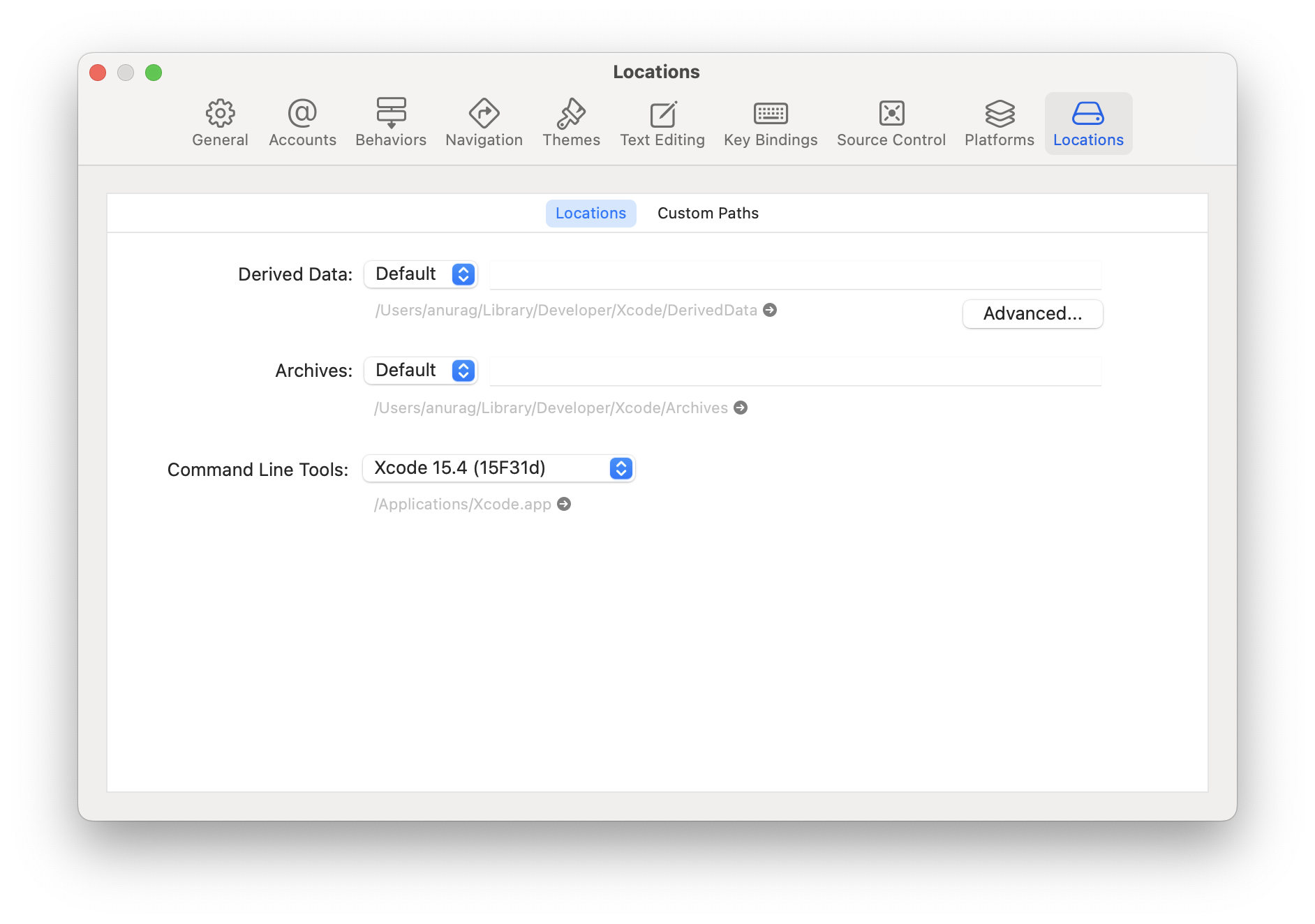
安装命令行工具:在 Xcode 菜单中选择 Settings... (或 Preferences...),进入 Locations 面板后,从 Command Line Tools 下拉菜单选择最新版本进行安装。
CocoaPods
CocoaPods 是 iOS 和 macOS 开发的包管理工具。我们将使用它将 React Native 框架代码本地添加到当前项目中。
推荐通过 Homebrew 安装 CocoaPods:
brew install cocoapods
4. 将 React Native 添加到应用
配置 CocoaPods
配置 CocoaPods 需要两个文件:
-
定义所需 Ruby 依赖的 Gemfile
-
定义依赖安装方式的 Podfile
对于 Gemfile,请进入项目根目录运行:
curl -O https://raw.githubusercontent.com/react-native-community/template/refs/heads/0.81-stable/template/Gemfile
这将从模板下载 Gemfile。
若您使用 Xcode 16 创建项目,请按如下方式更新 Gemfile:
-gem 'cocoapods', '>= 1.13', '!= 1.15.0', '!= 1.15.1'
+gem 'cocoapods', '1.16.2'
gem 'activesupport', '>= 6.1.7.5', '!= 7.1.0'
-gem 'xcodeproj', '< 1.26.0'
+gem 'xcodeproj', '1.27.0'
Xcode 16 生成项目的方式与旧版本略有不同,您需要最新的 CocoaPods 和 Xcodeproj gems 才能正常运行。
同样地,对于 Podfile,请进入项目的 ios 文件夹并运行:
curl -O https://raw.githubusercontent.com/react-native-community/template/refs/heads/0.81-stable/template/ios/Podfile
Please use the Community Template as a reference point for the Gemfile and for the Podfile.
请记得修改 this line。
现在我们需要运行几个额外命令来安装 Ruby gems 和 Pods。
请导航到 ios 文件夹并运行以下命令:
bundle install
bundle exec pod install
第一条命令将安装 Ruby 依赖项,第二条命令会将 React Native 代码实际集成到您的应用中,使您的 iOS 文件能够导入 React Native 头文件。
5. 编写 TypeScript 代码
现在我们将实际修改原生 iOS 应用以集成 React Native。
我们要编写的第一段代码是将要集成到应用中的新屏幕的 React Native 实际代码。
创建 index.js 文件
首先在 React Native 项目的根目录创建一个空的 index.js 文件。
index.js 是 React Native 应用的入口文件且必须存在。它可以是一个import其他 React Native 组件或应用文件的小文件,也可以包含所需全部代码。
Our index.js should look as follows (here the Community template file as reference):
import {AppRegistry} from 'react-native';
import App from './App';

AppRegistry.registerComponent('HelloWorld', () => App);
创建 App.tsx 文件
Let's create an App.tsx file. This is a TypeScript file that can have JSX expressions. It contains the root React Native component that we will integrate into our iOS application (link):
import React from 'react';
import {
  SafeAreaView,
  ScrollView,
  StatusBar,
  StyleSheet,
  Text,
  useColorScheme,
  View,
} from 'react-native';

import {
  Colors,
  DebugInstructions,
  Header,
  ReloadInstructions,
} from 'react-native/Libraries/NewAppScreen';

function App(): React.JSX.Element {
  const isDarkMode = useColorScheme() === 'dark';

  const backgroundStyle = {
    backgroundColor: isDarkMode ? Colors.darker : Colors.lighter,
  };

  return (
    <SafeAreaView style={backgroundStyle}>
      <StatusBar
        barStyle={isDarkMode ? 'light-content' : 'dark-content'}
        backgroundColor={backgroundStyle.backgroundColor}
      />
      <ScrollView
        contentInsetAdjustmentBehavior="automatic"
        style={backgroundStyle}>
        <Header />
        <View
          style={{
            backgroundColor: isDarkMode
              ? Colors.black
              : Colors.white,
            padding: 24,
          }}>
          <Text style={styles.title}>Step One</Text>
          <Text>
            Edit <Text style={styles.bold}>App.tsx</Text> to
            change this screen and see your edits.
          </Text>
          <Text style={styles.title}>See your changes</Text>
          <ReloadInstructions />
          <Text style={styles.title}>Debug</Text>
          <DebugInstructions />
        </View>
      </ScrollView>
    </SafeAreaView>
  );
}

const styles = StyleSheet.create({
  title: {
    fontSize: 24,
    fontWeight: '600',
  },
  bold: {
    fontWeight: '700',
  },
});

export default App;
Here is the Community template file as reference.
5. 与 iOS 代码集成
现在我们需要添加一些原生代码来启动 React Native 运行时并渲染 React 组件。
前提条件
React Native 的初始化过程现在不再与 iOS 应用的任何特定部分绑定。
您可以使用名为 RCTReactNativeFactory 的类来初始化 React Native,它会为您处理 React Native 的生命周期。
初始化该类后,您既可以启动 React Native 视图并为其提供 UIWindow 对象,也可以让工厂生成 UIView,然后将其加载到任意 UIViewController. 中。
在以下示例中,我们将创建一个 ViewController,它可以将 React Native 视图加载为其 view。
创建 ReactViewController
Create a new file from template (⌘+N) and choose the Cocoa Touch Class template.
确保在 "Subclass of" 字段中选择 UIViewController。
- ObjectiveC
- Swift
Now open the ReactViewController.m file and apply the following changes
#import "ReactViewController.h"
+#import <React/RCTBundleURLProvider.h>
+#import <RCTReactNativeFactory.h>
+#import <RCTDefaultReactNativeFactoryDelegate.h>
+#import <RCTAppDependencyProvider.h>


@interface ReactViewController ()

@end

+@interface ReactNativeFactoryDelegate: RCTDefaultReactNativeFactoryDelegate
+@end

-@implementation ReactViewController
+@implementation ReactViewController {
+  RCTReactNativeFactory *_factory;
+  id<RCTReactNativeFactoryDelegate> _factoryDelegate;
+}

 - (void)viewDidLoad {
     [super viewDidLoad];
     // Do any additional setup after loading the view.
+    _factoryDelegate = [ReactNativeFactoryDelegate new];
+    _factoryDelegate.dependencyProvider = [RCTAppDependencyProvider new];
+    _factory = [[RCTReactNativeFactory alloc] initWithDelegate:_factoryDelegate];
+    self.view = [_factory.rootViewFactory viewWithModuleName:@"HelloWorld"];
 }

@end

+@implementation ReactNativeFactoryDelegate
+
+- (NSURL *)sourceURLForBridge:(RCTBridge *)bridge
+{
+  return [self bundleURL];
+}
+
+- (NSURL *)bundleURL
+{
+#if DEBUG
+  return [RCTBundleURLProvider.sharedSettings jsBundleURLForBundleRoot:@"index"];
+#else
+  return [NSBundle.mainBundle URLForResource:@"main" withExtension:@"jsbundle"];
+#endif
+}

@end
Now open the ReactViewController.swift file and apply the following changes
import UIKit
+import React
+import React_RCTAppDelegate
+import ReactAppDependencyProvider

class ReactViewController: UIViewController {
+  var reactNativeFactory: RCTReactNativeFactory?
+  var reactNativeFactoryDelegate: RCTReactNativeFactoryDelegate?

  override func viewDidLoad() {
    super.viewDidLoad()
+    reactNativeFactoryDelegate = ReactNativeDelegate()
+    reactNativeFactoryDelegate!.dependencyProvider = RCTAppDependencyProvider()
+    reactNativeFactory = RCTReactNativeFactory(delegate: reactNativeFactoryDelegate!)
+    view = reactNativeFactory!.rootViewFactory.view(withModuleName: "HelloWorld")

  }
}

+class ReactNativeDelegate: RCTDefaultReactNativeFactoryDelegate {
+    override func sourceURL(for bridge: RCTBridge) -> URL? {
+      self.bundleURL()
+    }
+
+    override func bundleURL() -> URL? {
+      #if DEBUG
+      RCTBundleURLProvider.sharedSettings().jsBundleURL(forBundleRoot: "index")
+      #else
+      Bundle.main.url(forResource: "main", withExtension: "jsbundle")
+      #endif
+    }
+
+}
在 rootViewController 中呈现 React Native 视图
最后,我们可以展示 React Native 视图。为此,我们需要一个新的 View Controller 来承载加载 JS 内容的视图。我们已经有了初始的 ViewController,可以使其展示 ReactViewController。具体实现方式取决于你的应用架构,本示例假设你有一个用于模态展示 React Native 的按钮。
- ObjectiveC
- Swift
#import "ViewController.h"
+#import "ReactViewController.h"

@interface ViewController ()

@end

- @implementation ViewController
+@implementation ViewController {
+  ReactViewController *reactViewController;
+}

 - (void)viewDidLoad {
   [super viewDidLoad];
   // Do any additional setup after loading the view.
   self.view.backgroundColor = UIColor.systemBackgroundColor;
+  UIButton *button = [UIButton new];
+  [button setTitle:@"Open React Native" forState:UIControlStateNormal];
+  [button setTitleColor:UIColor.systemBlueColor forState:UIControlStateNormal];
+  [button setTitleColor:UIColor.blueColor forState:UIControlStateHighlighted];
+  [button addTarget:self action:@selector(presentReactNative) forControlEvents:UIControlEventTouchUpInside];
+  [self.view addSubview:button];

+  button.translatesAutoresizingMaskIntoConstraints = NO;
+  [NSLayoutConstraint activateConstraints:@[
+    [button.leadingAnchor constraintEqualToAnchor:self.view.leadingAnchor],
+    [button.trailingAnchor constraintEqualToAnchor:self.view.trailingAnchor],
+    [button.centerYAnchor constraintEqualToAnchor:self.view.centerYAnchor],
+    [button.centerXAnchor constraintEqualToAnchor:self.view.centerXAnchor],
+  ]];
 }

+- (void)presentReactNative
+{
+  if (reactViewController == NULL) {
+    reactViewController = [ReactViewController new];
+  }
+  [self presentViewController:reactViewController animated:YES];
+}

@end
import UIKit

class ViewController: UIViewController {

+  var reactViewController: ReactViewController?

  override func viewDidLoad() {
    super.viewDidLoad()
    // Do any additional setup after loading the view.
    self.view.backgroundColor = .systemBackground

+    let button = UIButton()
+    button.setTitle("Open React Native", for: .normal)
+    button.setTitleColor(.systemBlue, for: .normal)
+    button.setTitleColor(.blue, for: .highlighted)
+    button.addAction(UIAction { [weak self] _ in
+      guard let self else { return }
+      if reactViewController == nil {
+       reactViewController = ReactViewController()
+      }
+      present(reactViewController!, animated: true)
+    }, for: .touchUpInside)
+    self.view.addSubview(button)
+
+    button.translatesAutoresizingMaskIntoConstraints = false
+    NSLayoutConstraint.activate([
+      button.leadingAnchor.constraint(equalTo: self.view.leadingAnchor),
+      button.trailingAnchor.constraint(equalTo: self.view.trailingAnchor),
+      button.centerXAnchor.constraint(equalTo: self.view.centerXAnchor),
+      button.centerYAnchor.constraint(equalTo: self.view.centerYAnchor),
+    ])
  }
}
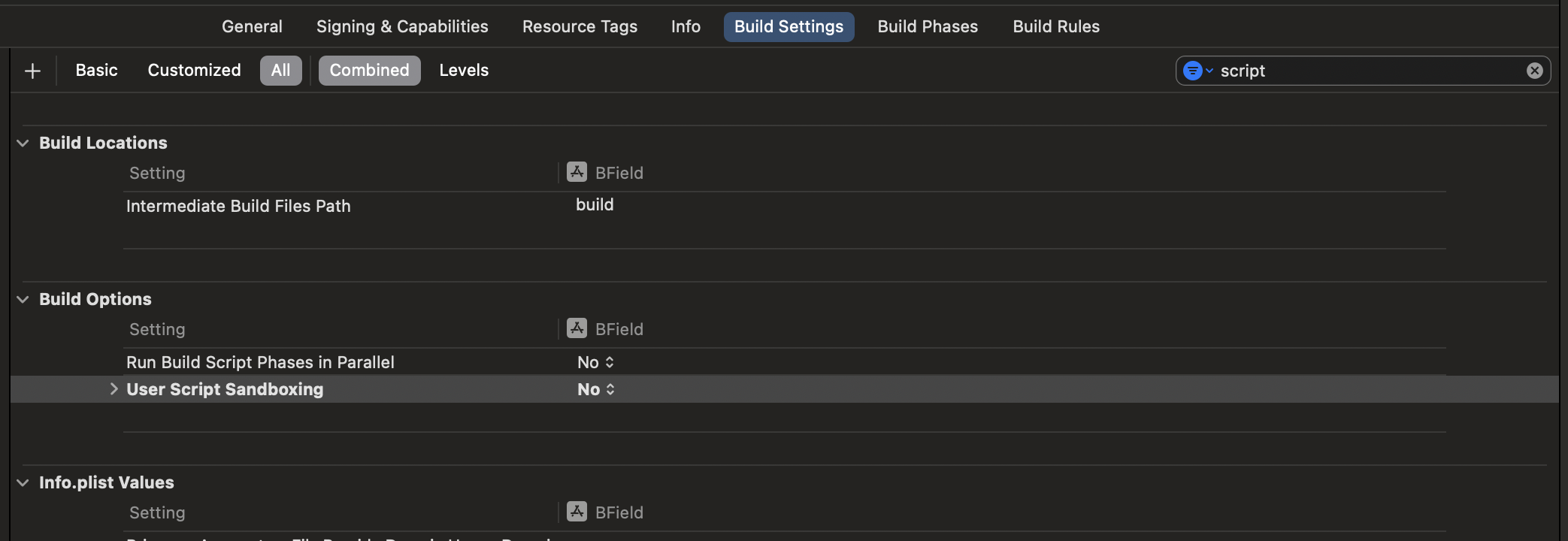
确保禁用沙盒脚本功能。在 Xcode 中点击你的应用,进入构建设置,筛选 "script" 并将 User Script Sandboxing 设为 NO。此步骤对于正确切换 React Native 内置的 Hermes 引擎的 Debug 和 Release 版本至关重要。
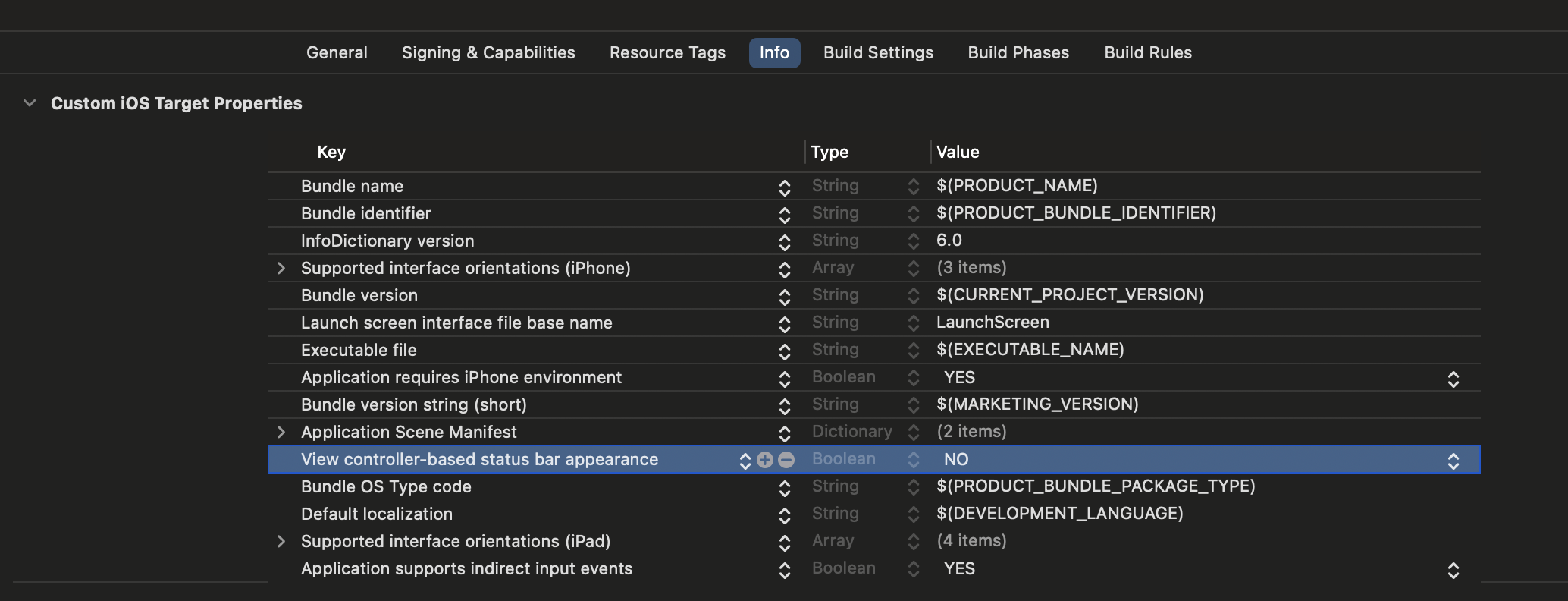
最后,在 Info.plist 文件中添加值为 NO 的 UIViewControllerBasedStatusBarAppearance 键。
6. 测试集成
已完成 React Native 与应用程序集成的基本步骤。现在我们将启动 Metro 打包工具,将 TypeScript 应用代码编译成资源包。Metro 的 HTTP 服务器在您的开发环境中通过 localhost 将资源包共享给模拟器或真机,从而实现热重载功能。
首先在项目根目录创建如下内容的 metro.config.js 文件:
const {getDefaultConfig} = require('@react-native/metro-config');
module.exports = getDefaultConfig(__dirname);
You can checkout the metro.config.js file from the Community template file as reference.
接着在项目根目录创建包含空 JSON 对象的 .watchmanconfig 文件:
echo {} > .watchmanconfig
配置文件就绪后,即可运行打包器。在项目根目录下运行以下命令:
- npm
- Yarn
npm start
yarn start
然后照常构建并运行你的 iOS 应用。
当应用进入 React 驱动的界面时,会从开发服务器加载 JavaScript 代码并显示:

在 Xcode 中创建发布版本
也可使用 Xcode 创建发布版本!只需额外添加一个在应用构建时执行的脚本,将 JS 和图片资源打包进 iOS 应用。
-
在 Xcode 中选择你的应用
-
点击
Build Phases -
点击左上角
+选择New Run Script Phase -
点击
Run Script行并将脚本重命名为Bundle React Native code and images -
在文本框粘贴以下脚本
set -e

WITH_ENVIRONMENT="$REACT_NATIVE_PATH/scripts/xcode/with-environment.sh"
REACT_NATIVE_XCODE="$REACT_NATIVE_PATH/scripts/react-native-xcode.sh"

/bin/sh -c "$WITH_ENVIRONMENT $REACT_NATIVE_XCODE"
- 将该脚本拖放到
[CP] Embed Pods Frameworks脚本之前
现在构建发布版本时,应用将按预期工作。
7. 向 React Native 视图传递初始 props
在某些情况下,你可能希望将一些信息从原生应用传递到 JavaScript。例如,你可能想将当前已登录用户的用户 ID 和一个可用于从数据库检索信息的令牌一起传递给 React Native。
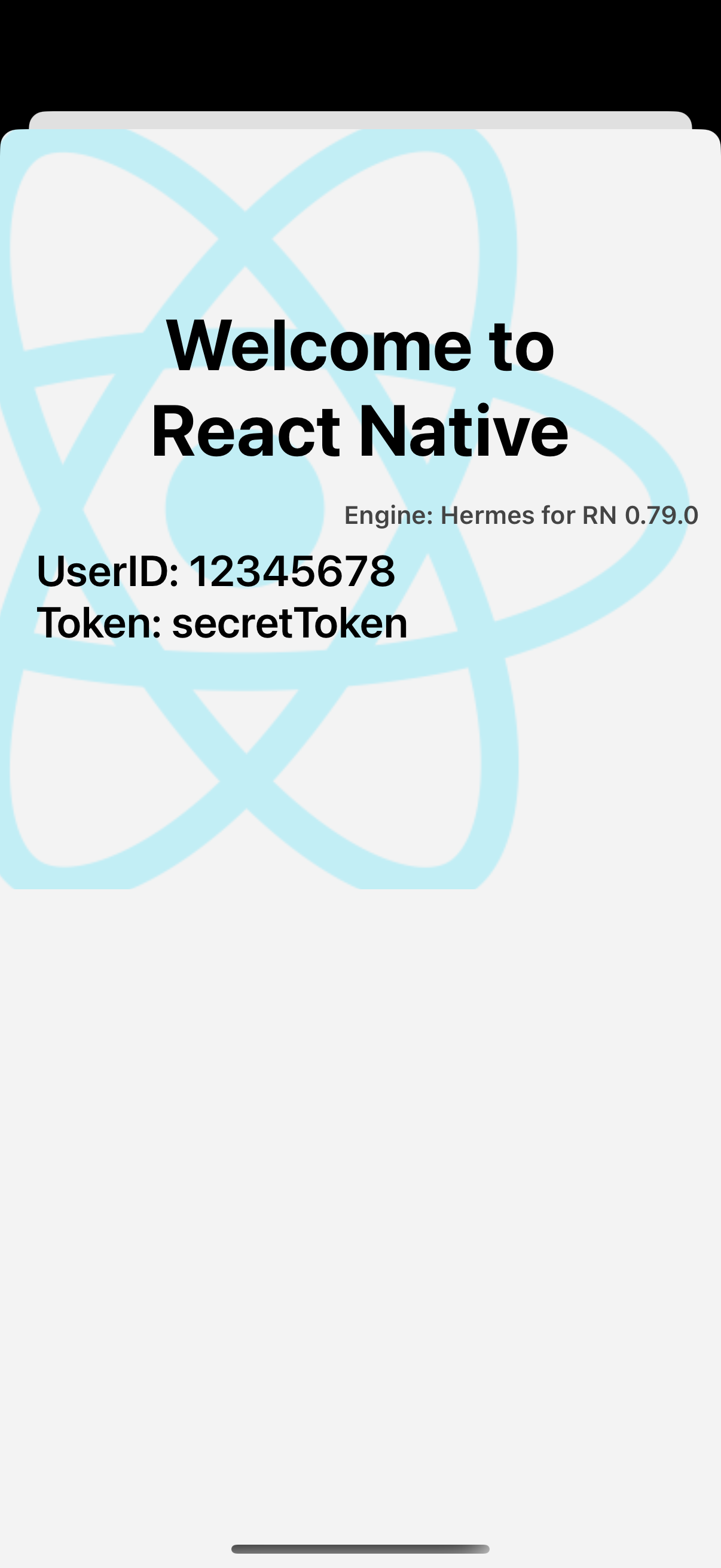
我们可以通过使用 RCTReactNativeFactory 类中的 view(withModuleName:initialProperty) 重载方法的 initialProperties 参数来实现此功能。以下步骤将指导你如何操作:
更新 App.tsx 文件以读取初始属性
打开 App.tsx 文件并添加以下代码:
import {
  Colors,
  DebugInstructions,
  Header,
  ReloadInstructions,
} from 'react-native/Libraries/NewAppScreen';

-function App(): React.JSX.Element {
+function App(props): React.JSX.Element {
  const isDarkMode = useColorScheme() === 'dark';

  const backgroundStyle = {
    backgroundColor: isDarkMode ? Colors.darker : Colors.lighter,
  };

  return (
    <SafeAreaView style={backgroundStyle}>
      <StatusBar
        barStyle={isDarkMode ? 'light-content' : 'dark-content'}
        backgroundColor={backgroundStyle.backgroundColor}
      />
      <ScrollView
        contentInsetAdjustmentBehavior="automatic"
        style={backgroundStyle}>
        <Header />
-       <View
-         style={{
-           backgroundColor: isDarkMode
-             ? Colors.black
-             : Colors.white,
-           padding: 24,
-         }}>
-         <Text style={styles.title}>Step One</Text>
-         <Text>
-           Edit <Text style={styles.bold}>App.tsx</Text> to
-           change this screen and see your edits.
-         </Text>
-         <Text style={styles.title}>See your changes</Text>
-         <ReloadInstructions />
-         <Text style={styles.title}>Debug</Text>
-         <DebugInstructions />
+         <Text style={styles.title}>UserID: {props.userID}</Text>
+         <Text style={styles.title}>Token: {props.token}</Text>
        </View>
      </ScrollView>
    </SafeAreaView>
  );
}

const styles = StyleSheet.create({
  title: {
    fontSize: 24,
    fontWeight: '600',
+   marginLeft: 20,
  },
  bold: {
    fontWeight: '700',
  },
});

export default App;
这些改动会告知 React Native 你的 App 组件现在可以接收初始属性。当组件渲染时,RCTreactNativeFactory 会负责将这些属性传递给组件。
更新原生代码以将初始属性传递给 JavaScript
- ObjectiveC
- Swift
Modify the ReactViewController.mm to pass the initial properties to JavaScript.
 - (void)viewDidLoad {
   [super viewDidLoad];
   // Do any additional setup after loading the view.

   _factoryDelegate = [ReactNativeFactoryDelegate new];
   _factoryDelegate.dependencyProvider = [RCTAppDependencyProvider new];
   _factory = [[RCTReactNativeFactory alloc] initWithDelegate:_factoryDelegate];
-  self.view = [_factory.rootViewFactory viewWithModuleName:@"HelloWorld"];
+  self.view = [_factory.rootViewFactory viewWithModuleName:@"HelloWorld" initialProperties:@{
+    @"userID": @"12345678",
+    @"token": @"secretToken"
+  }];
}
Modify the ReactViewController.swift to pass the initial properties to the React Native view.
  override func viewDidLoad() {
    super.viewDidLoad()
    reactNativeFactoryDelegate = ReactNativeDelegate()
    reactNativeFactoryDelegate!.dependencyProvider = RCTAppDependencyProvider()
    reactNativeFactory = RCTReactNativeFactory(delegate: reactNativeFactoryDelegate!)
-   view = reactNativeFactory!.rootViewFactory.view(withModuleName: "HelloWorld")
+   view = reactNativeFactory!.rootViewFactory.view(withModuleName: "HelloWorld" initialProperties: [
+     "userID": "12345678",
+     "token": "secretToken"
+])

  }
}
- 再次运行你的应用。呈现
ReactViewController后,你应该会看到如下界面: